2.2.11 Group by task - Statistics
Statistics > Call statistics
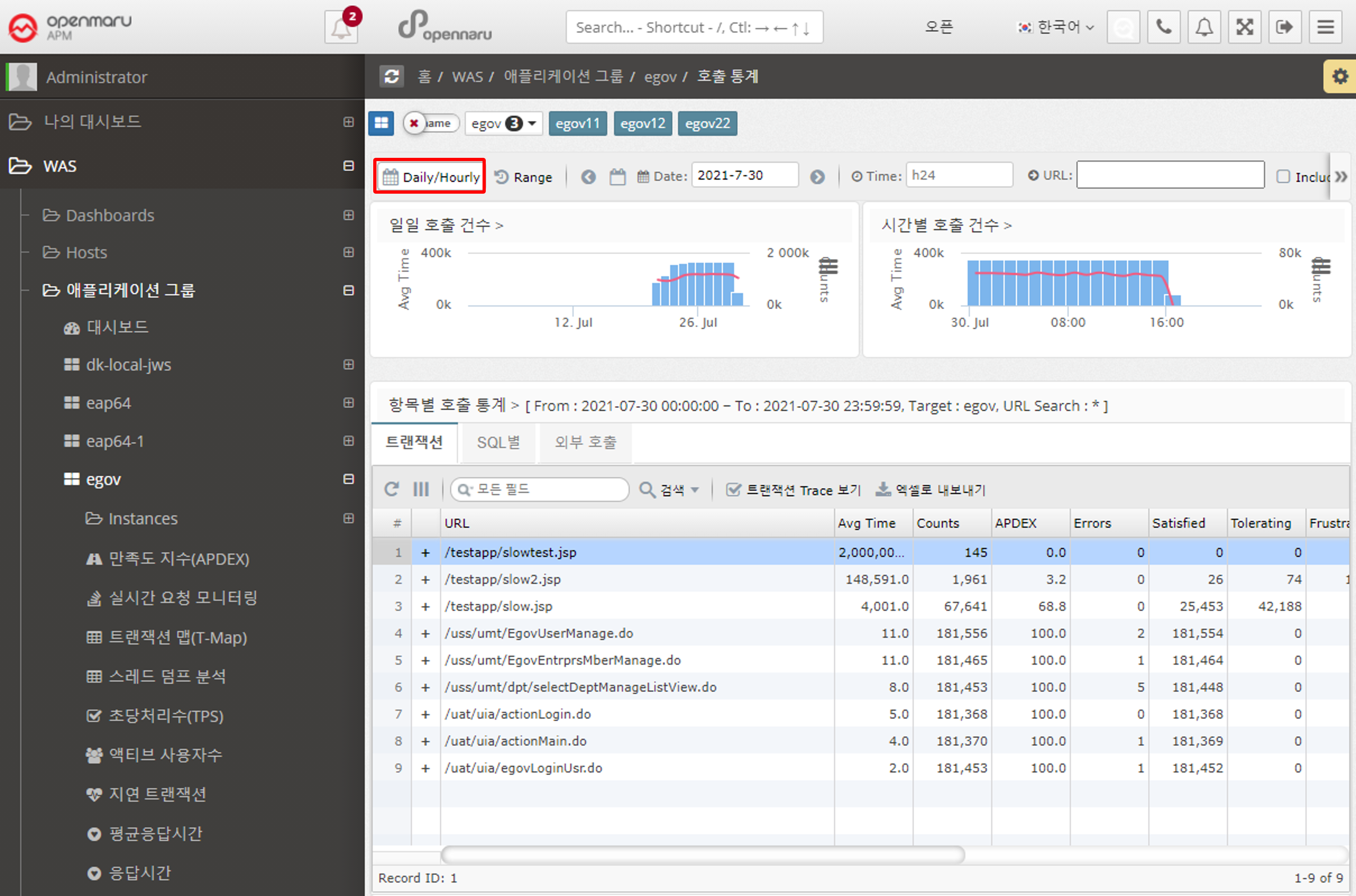
Displays the number of URL calls, SQL query executions, and external calls using HTTP Client by day and hour.
-
When a date is selected as 'Daily/Hourly', the number of daily calls and hourly calls for the month is displayed in a graph with the APDEX index.
-
Displays the URLs with the slowest average response time on that day in a list at the bottom.
-
Displays information such as average response time, number of calls, number of errors, number of satisfaction ratings, and average SQL query execution time for a given URL.
-
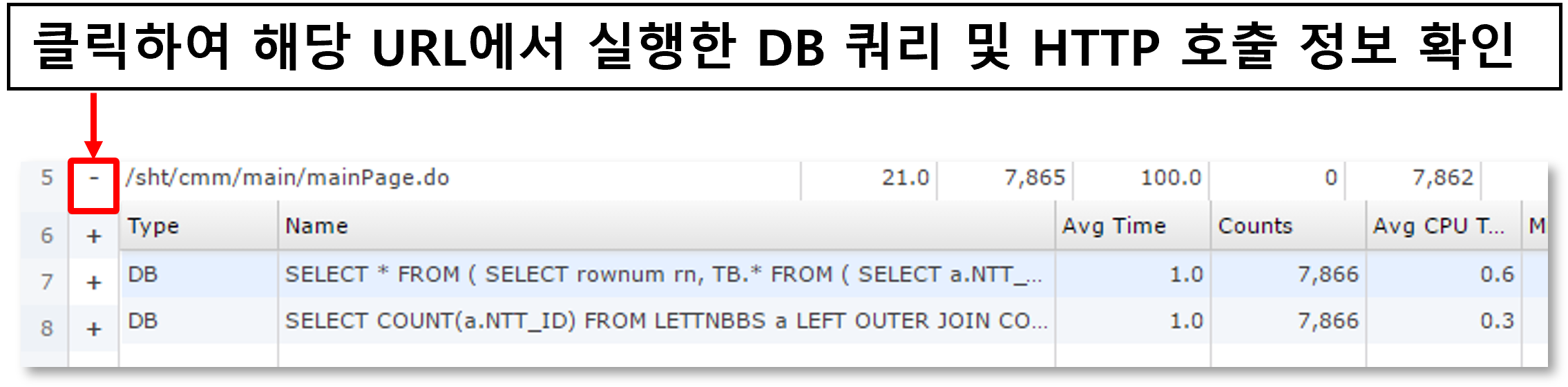
You can check the statistics of SQL and HTTP calls made within a URL.
-
See below for how to search for a specific date, time, or URL.

-
You can search by selecting a date range.

-
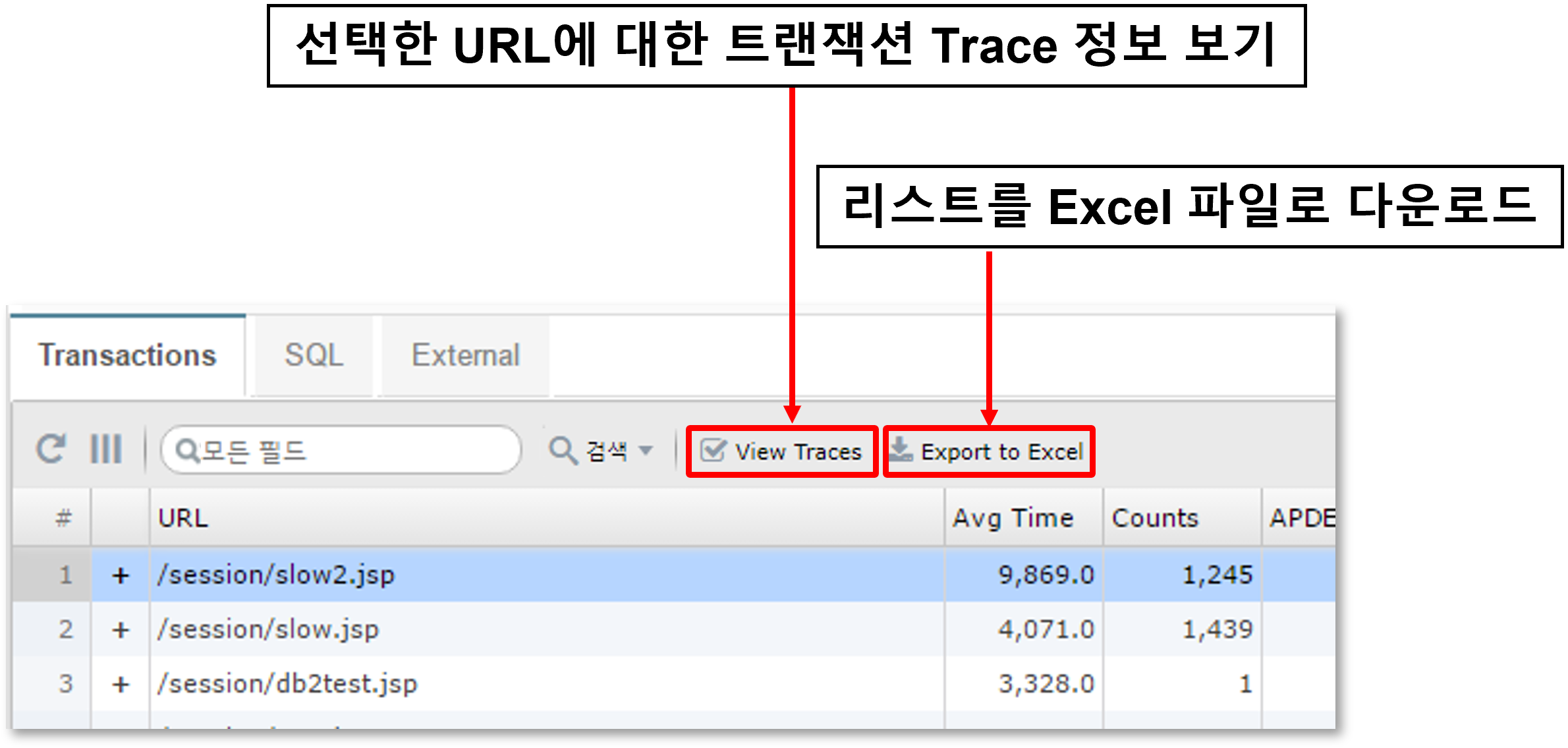
You can check the transaction trace information for the URL.
-
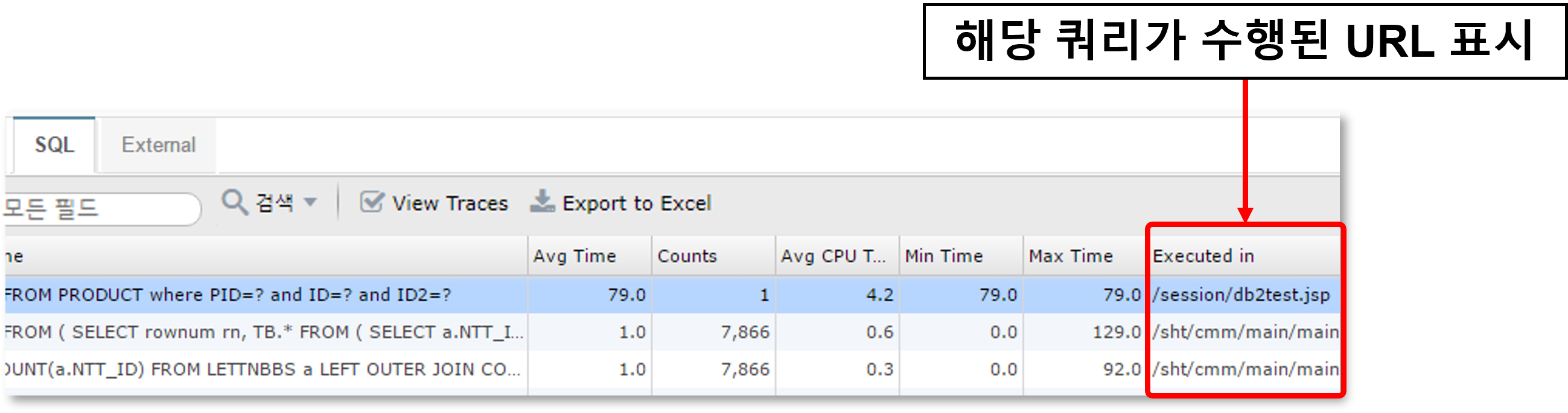
For SQL or HTTP calls, the URL where the query was executed is also displayed.
Statistics > Search for slow URLs
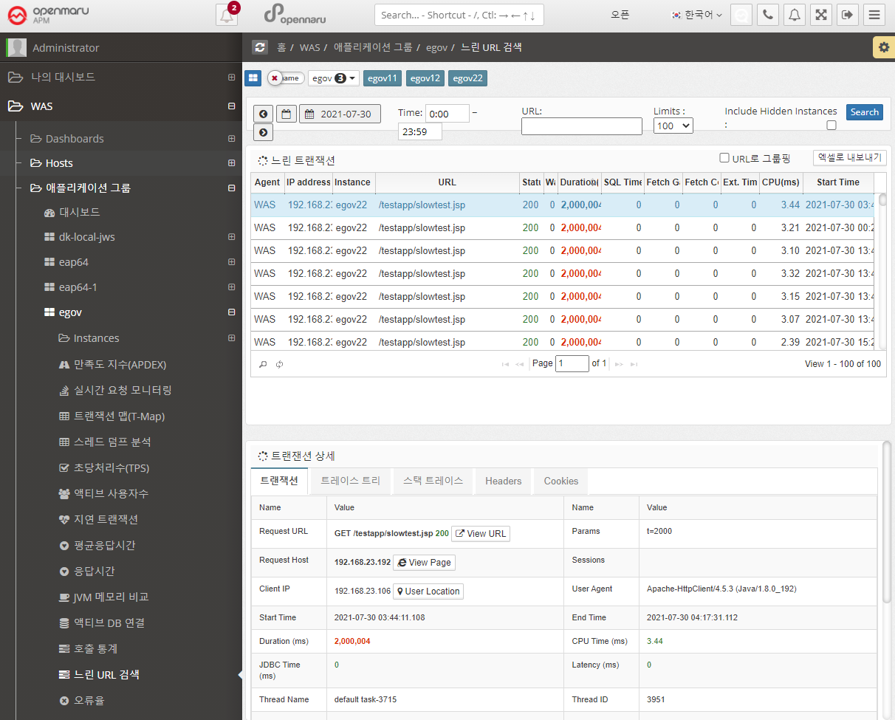
You can search for slow URLs for a job to see which URLs are slow. The usage is the same as "Statistics by WAS Instance - Search for Slow URLs", but this will output information for all instances that make up the job.
Statistics > Error Rate
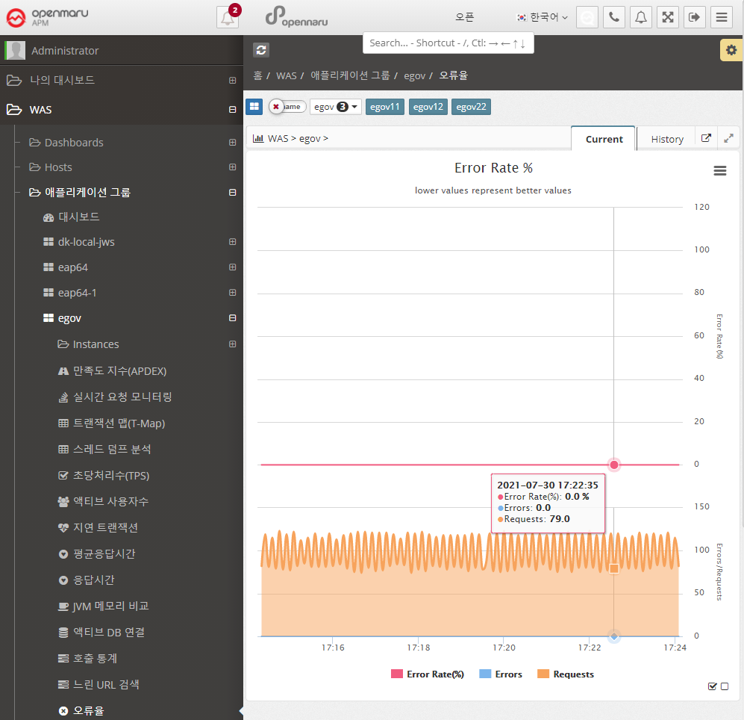
Summarizes and graphs the error rate for all WAS instances that make up the job system.
The error rate is calculated and displayed as the sum of the number of requests with HTTP Status codes of 40x, 50x, and 100x out of the total number of requests.
Statistics > Error Statistics
Displays hourly and daily graphs of errors in the workgroup. The information is categorized by the domain name that the user accessed by typing in their browser, and shows 400 and 500 errors separately.
For example, if your WAS instance serves more than one domain name, you can see which domain name users are accessing and using to get errors.
You can select a date to view hourly error statistics for that day.
If you select the 'Daily' tab, you can see error statistics for each day of the month.

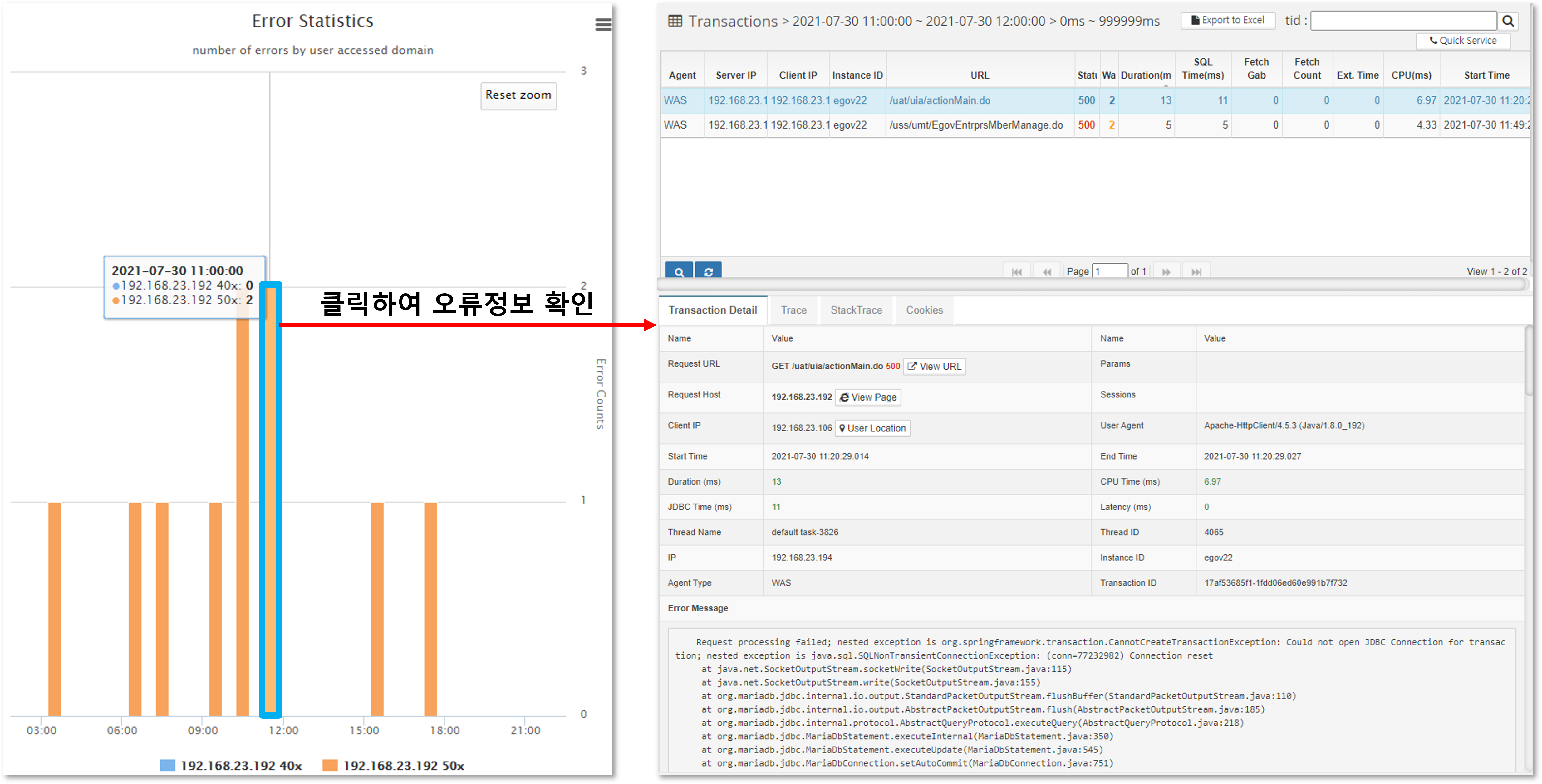
Also, if you want to see the details of the specific error that occurred, you can click on the bar to see the detailed transaction information for the error.