1.Quick Start
Author |
Version |
Date |
JiAe |
v1.0 |
2021-07-02 |
If you’re having trouble installing, we’ve put together a quick installation guide.
If you follow the guide carefully you’ll have the easiest and fastest installation possible.
Sign up and login
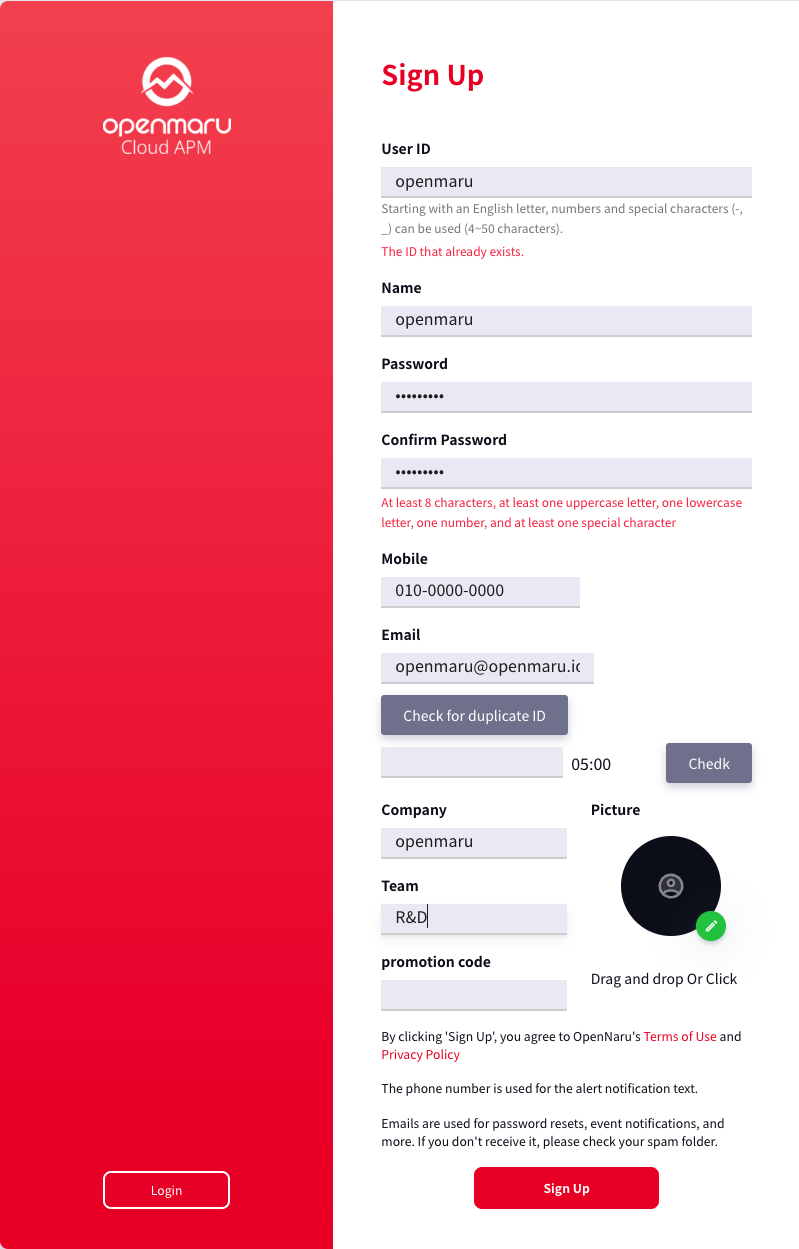
Before installing, please visit https://cloud.openmaru.io/ and click sign up.
After entering the information and verifying the authentication number Click the Register button.
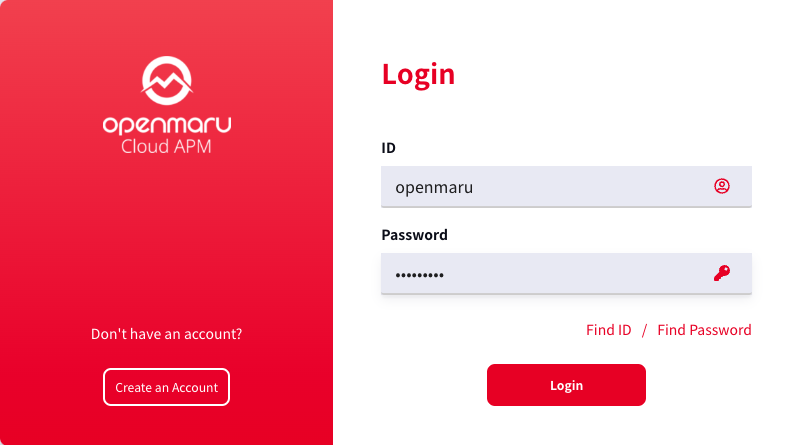
Enter your ID and password to log in.
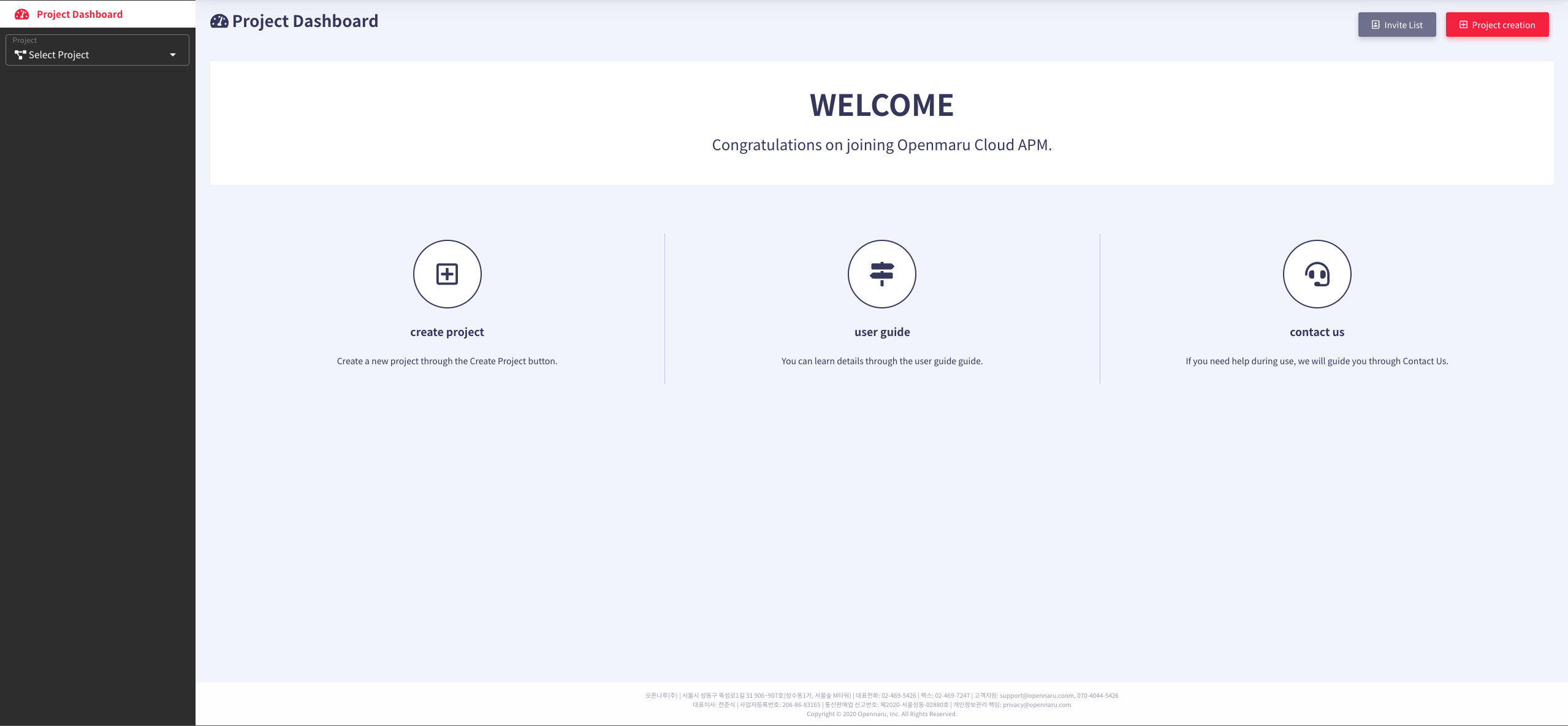
Create a project
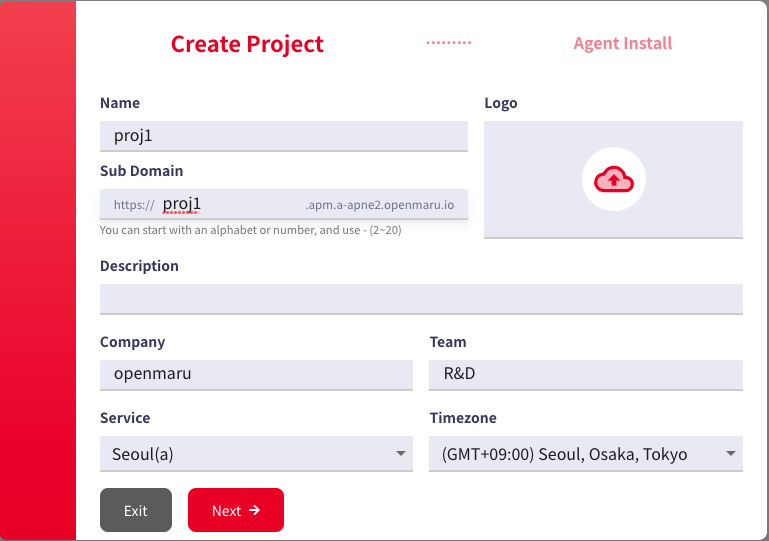
From the Projects dashboard, enter a project name and domain prefix to create a project
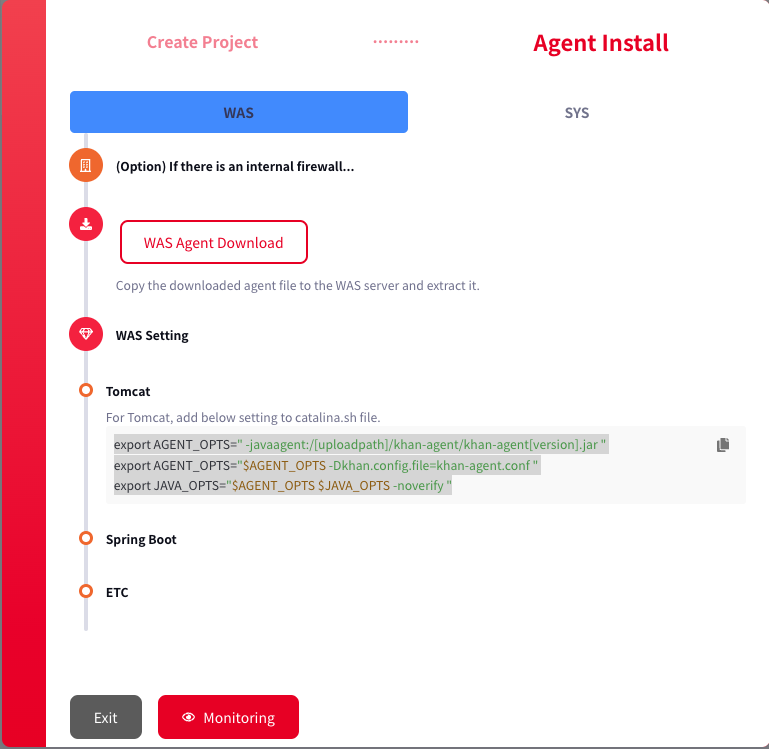
Download and install the agent
Let’s install the WAS agent.
Click the Download WAS Agent button below.
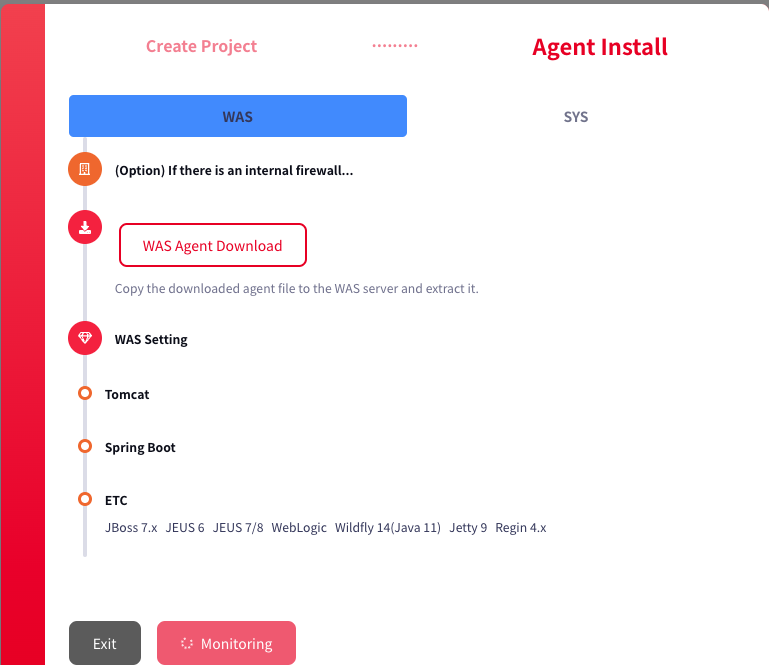
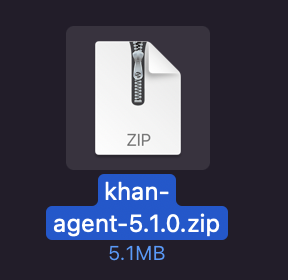
Unzip the archive.
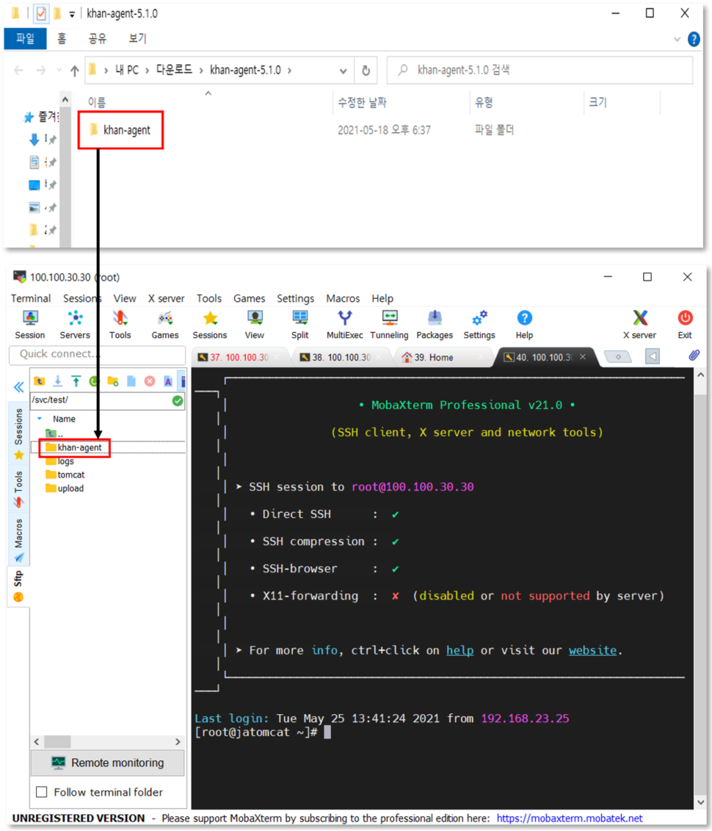
Copy the unzipped file inside your application server.
|
You can use the file upload tool you already have in place. The file upload tool used in the manual is MobaXterm. |
For Tomcat, add the settings below to the top of your catalina.sh file.
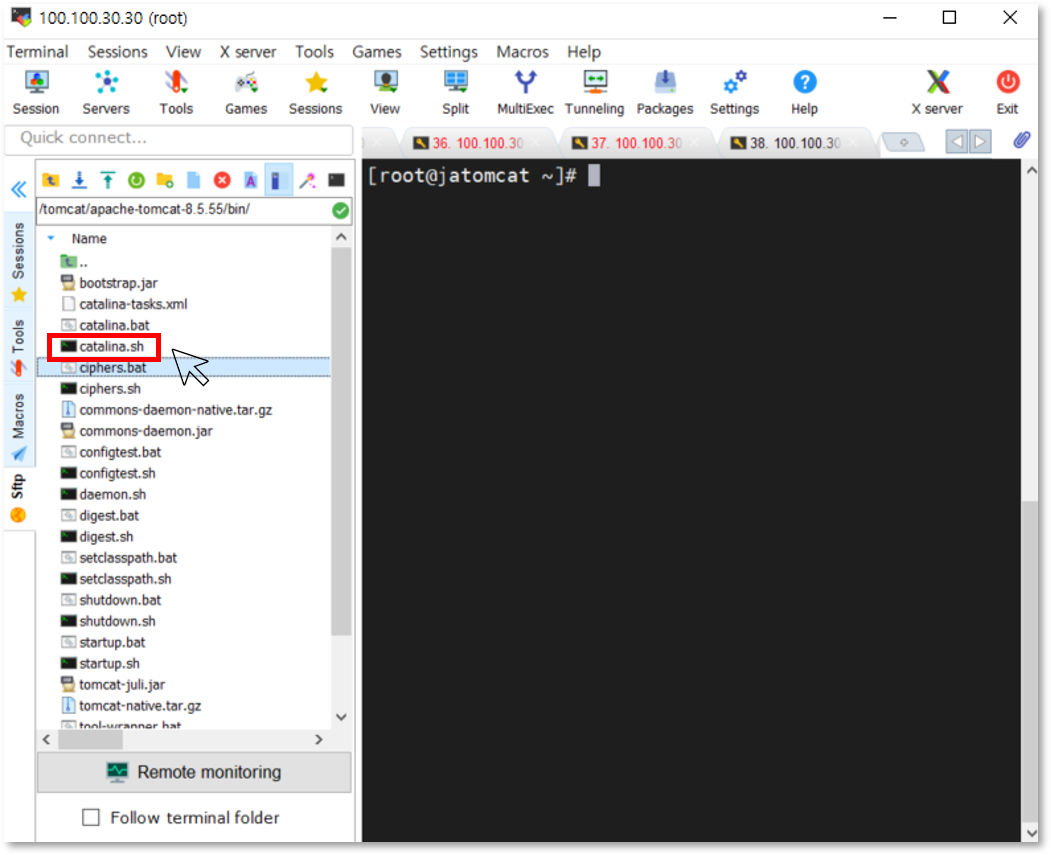
Edit the content using your favorite text editor.
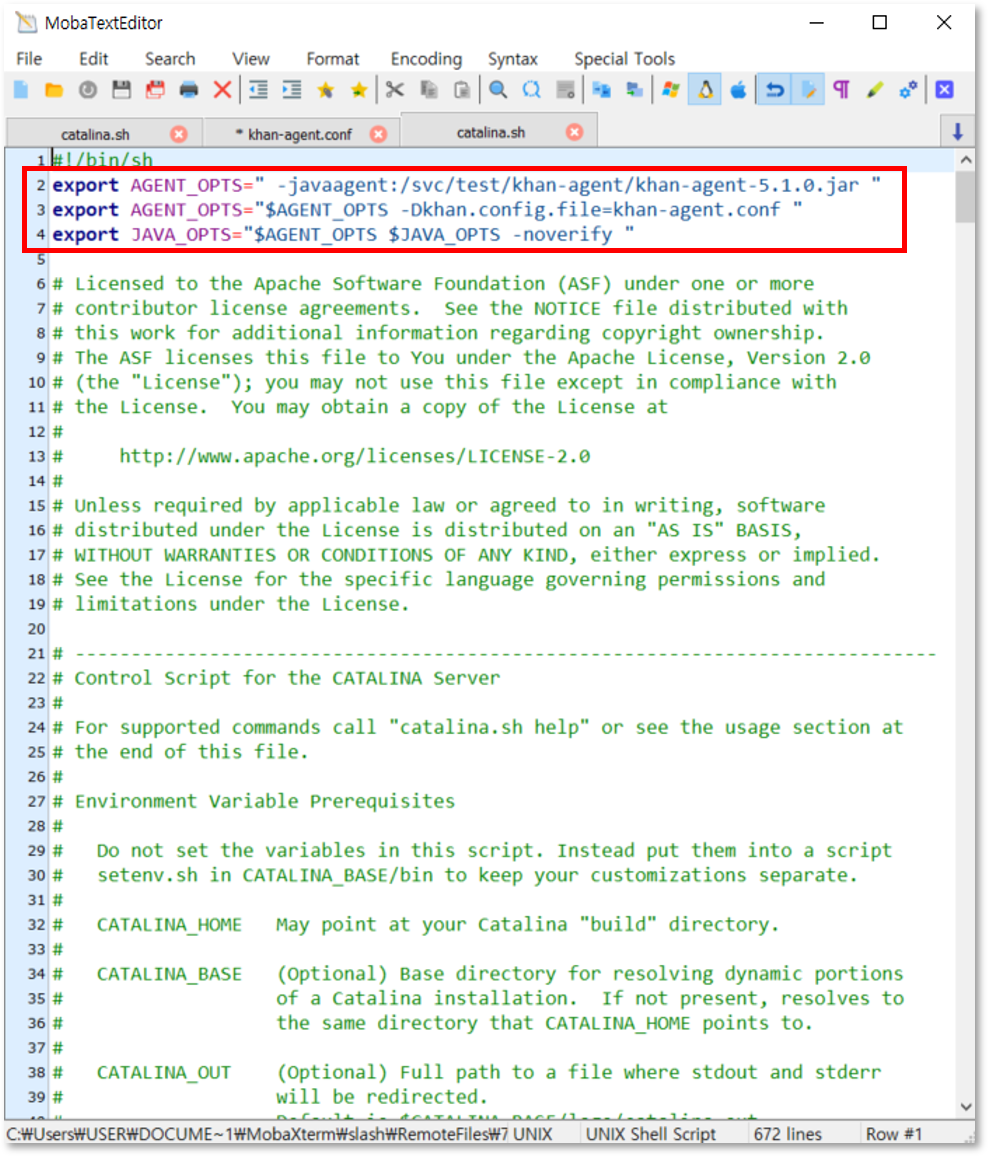
| Error when entering configuration wording at the end! |
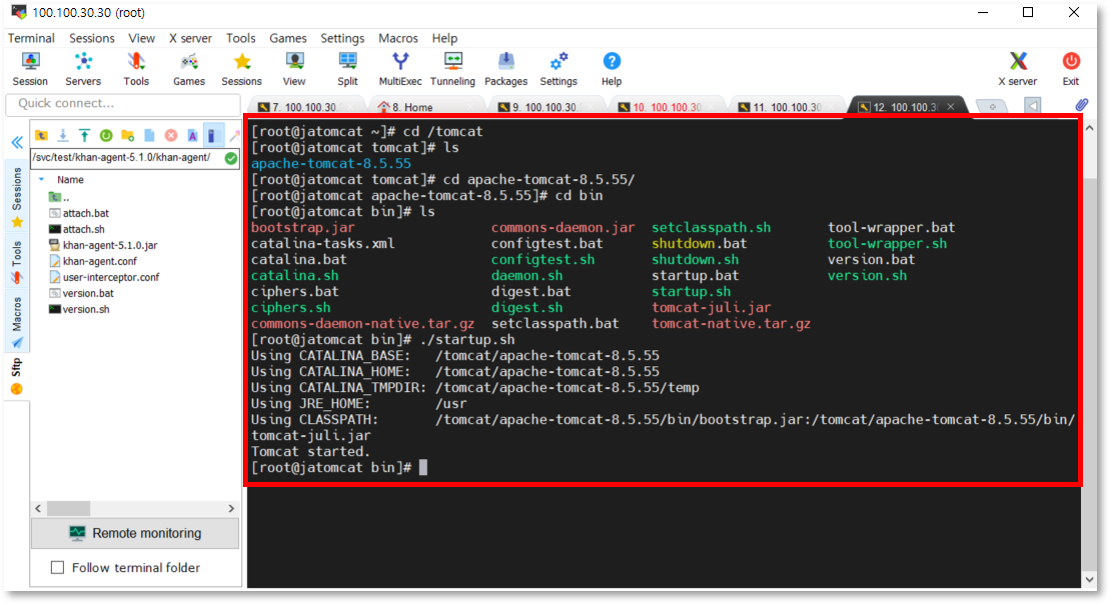
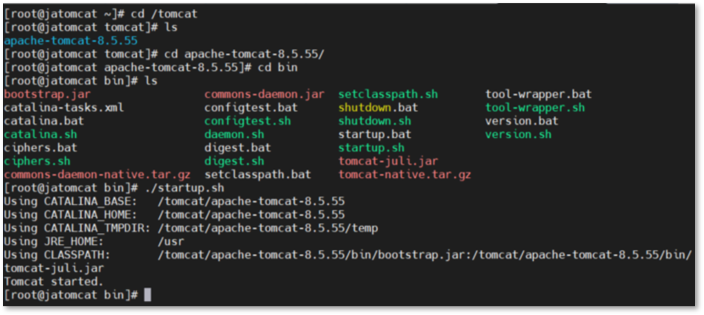
Starting Tomcat Inside the installed Tomcat folder, you can run or re-run Tomcat from the executable located inside the bin folder. Run or restart Tomcat.
Monitoring
After installing the agent, let’s monitor it.
Monitoring in the dashboard This is the overall dashboard screen.
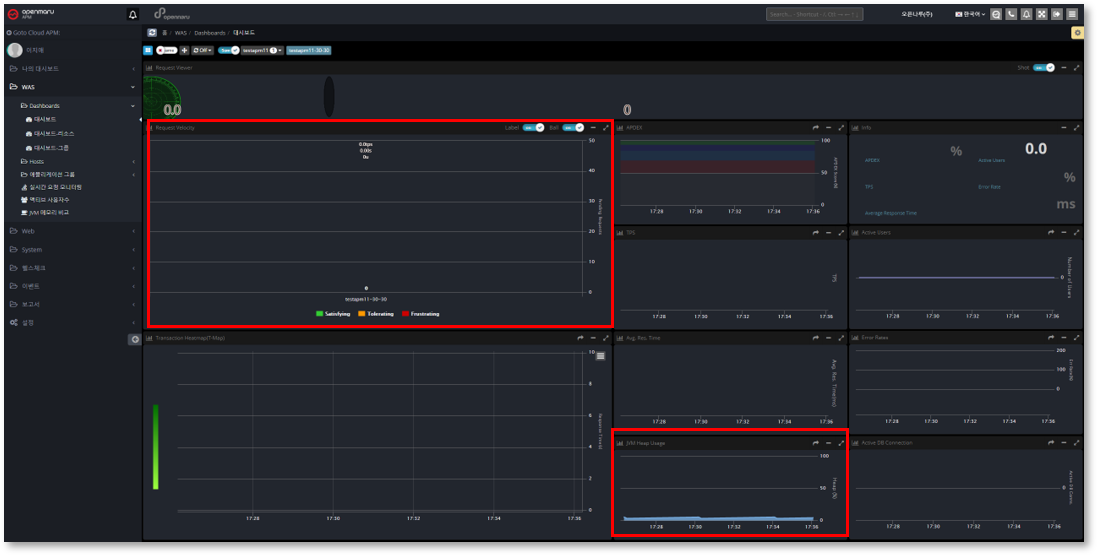
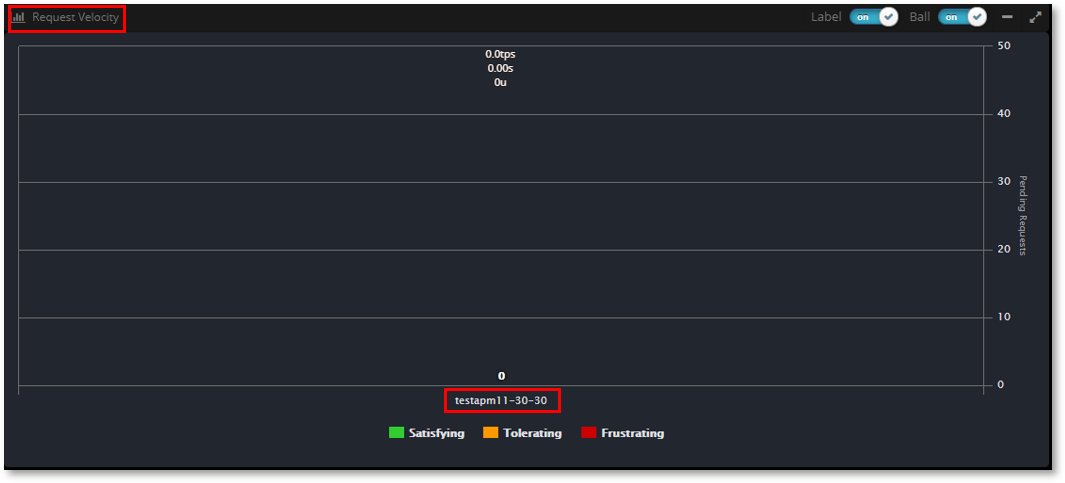
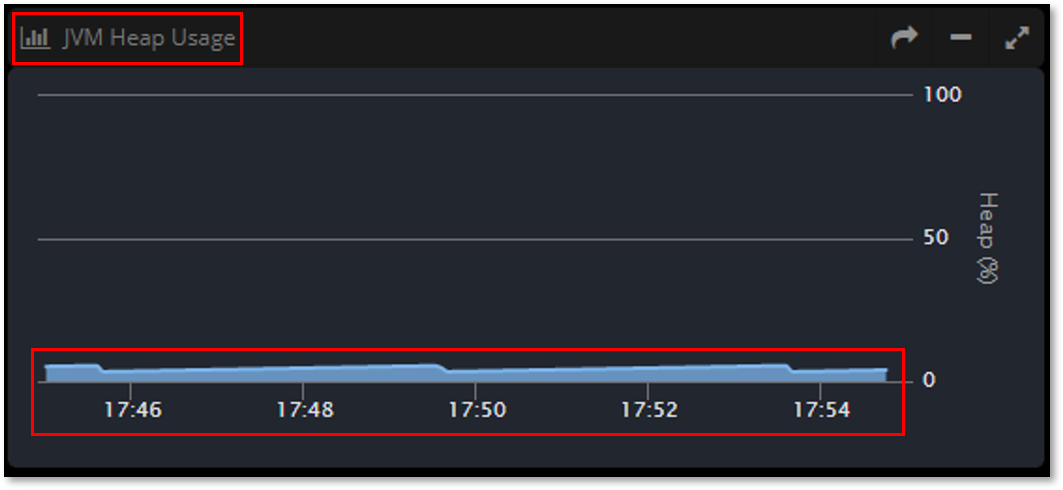
Request Velocity shown at the bottom - you can see the instance IDs, right? + JVM Heap Usage - value at the bottom. JVM Heap Usage - If you also see a value, you’re good to go!
You can also watch the WAS Agent installation video!