5.1 Get APM event alerts with Slack
What is Slack?

Slack works in a variety of web browsers and on iOS and Android platforms. The Slack app allows you to share messages between team members, much like a group chat in KakaoTalk, and all messages are stored on the server and can be retrieved at any time, just like email.
APM gives you the ability to add a bot to the slack that your team members use, which logs all the events that happen in APM in a specific message channel.
Users who subscribe to that channel can receive "alerts" on their mobile devices or web browsers about what’s happening in APM on their servers. It’s like an SMS or KakaoTalk messenger notification.
In the next chapter, we’ll show you how to create a team in Slack, add a bot, and integrate events from APM with Slack.
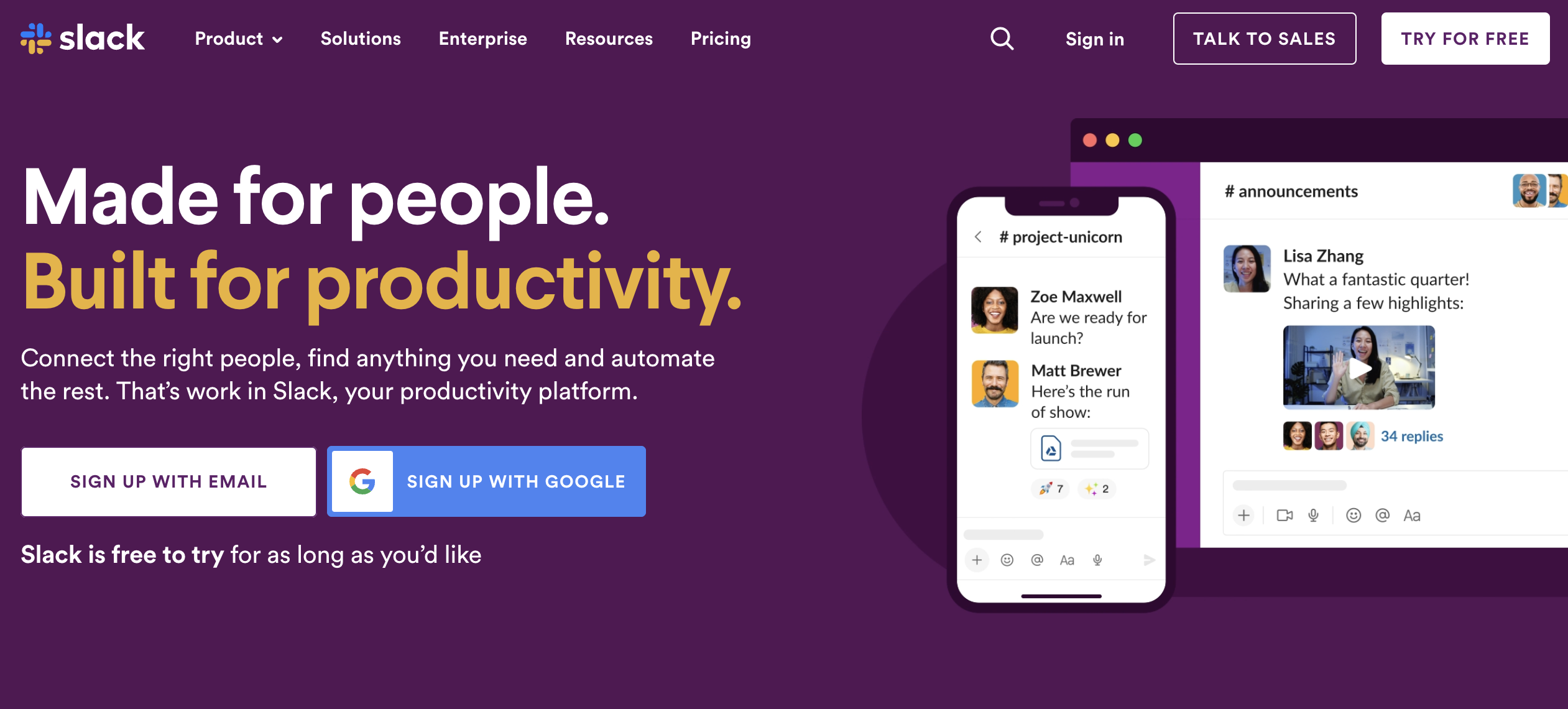
Create a Slack account
Click the "Create account" button and enter your email address.
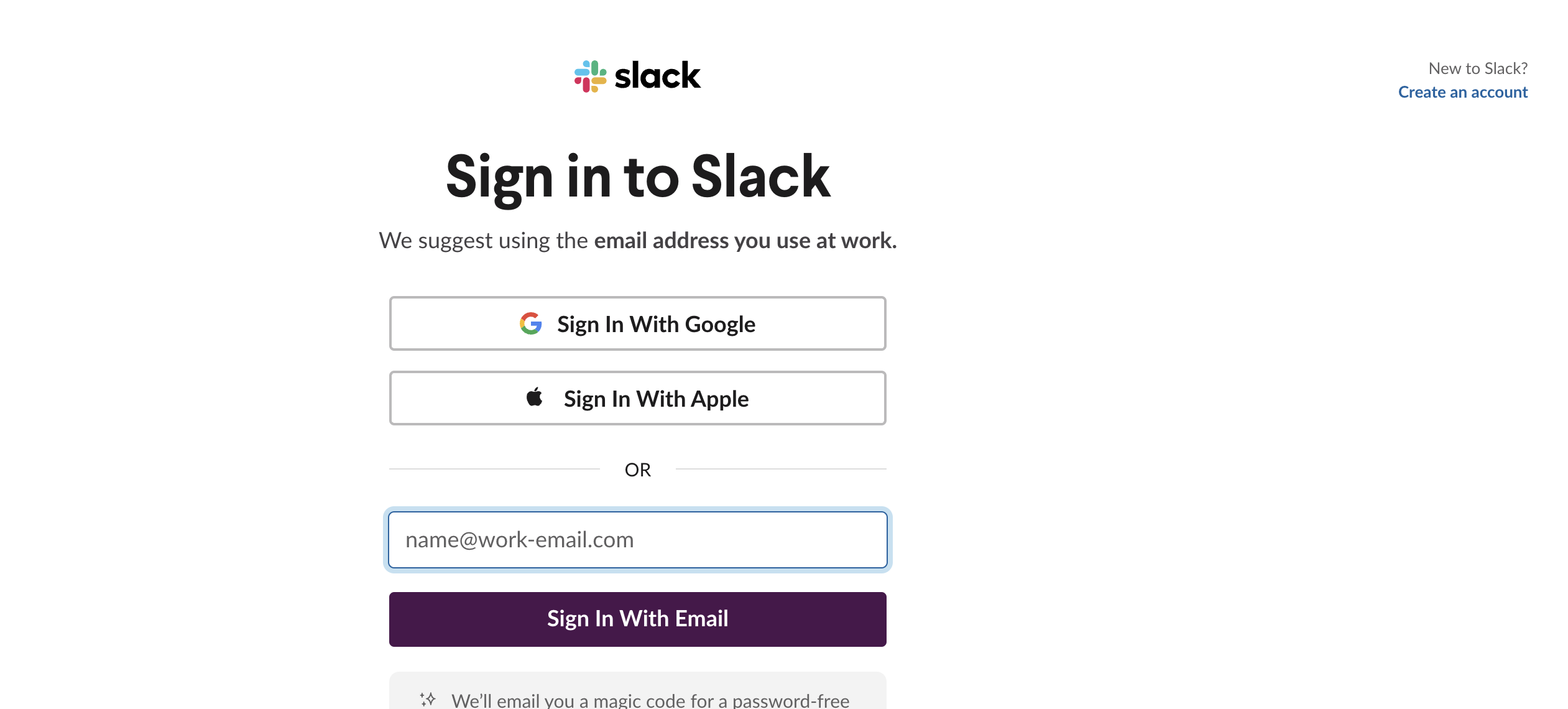
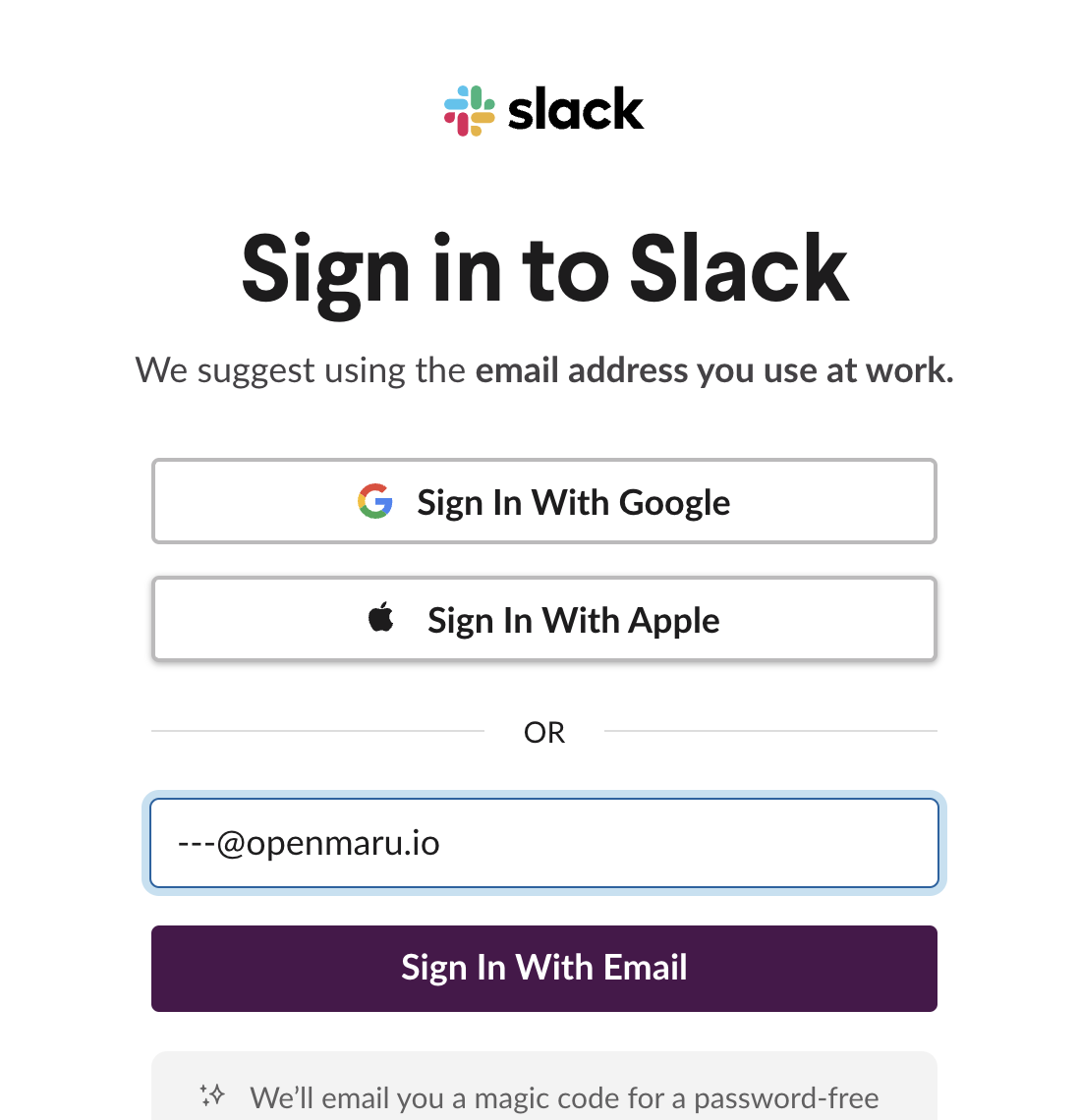
We recommend using the email address you use at work.
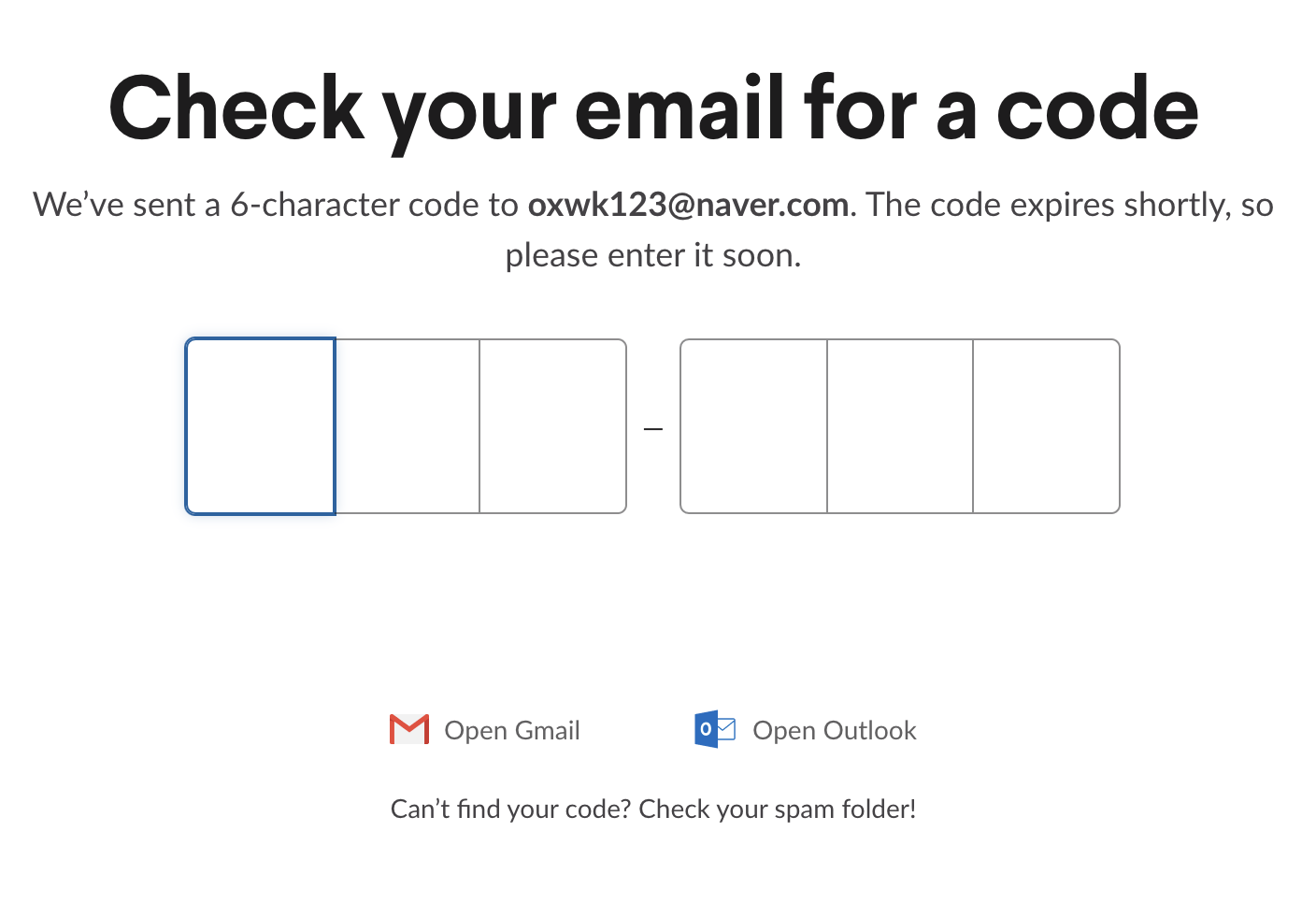
Enter your Slack confirmation code
Check the confirmation code sent to your email address.
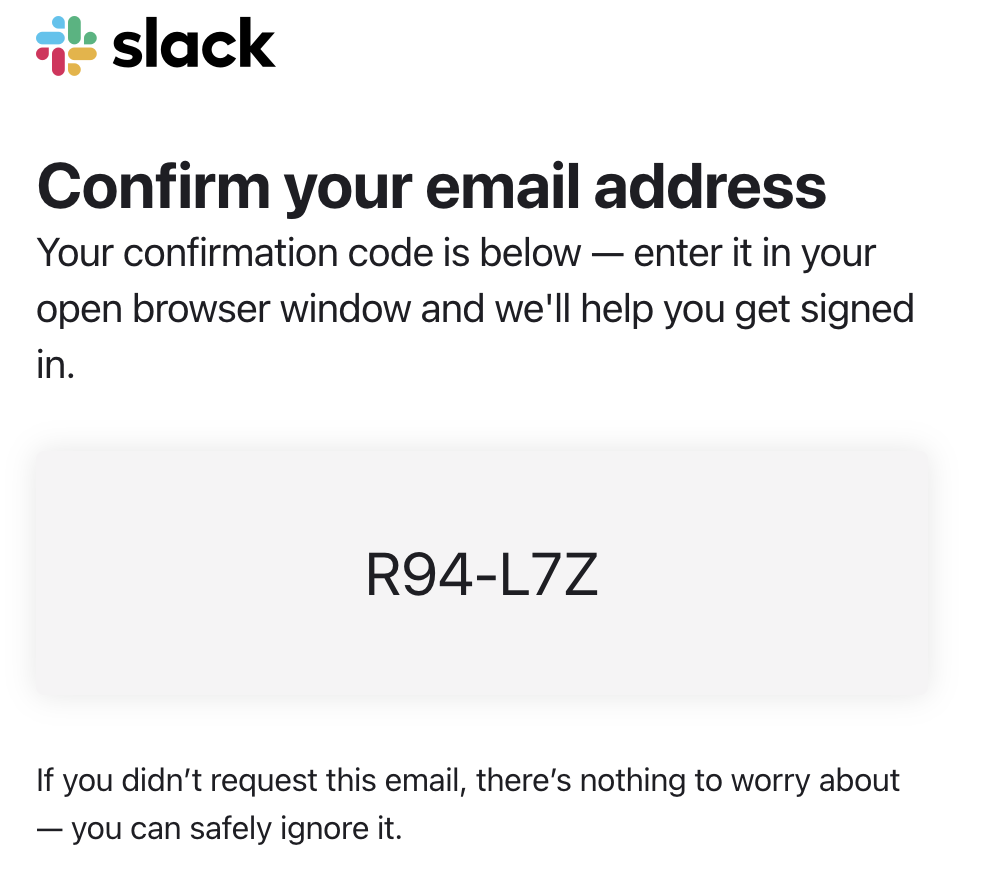
Enter the confirmation code into the appropriate window in Slack.
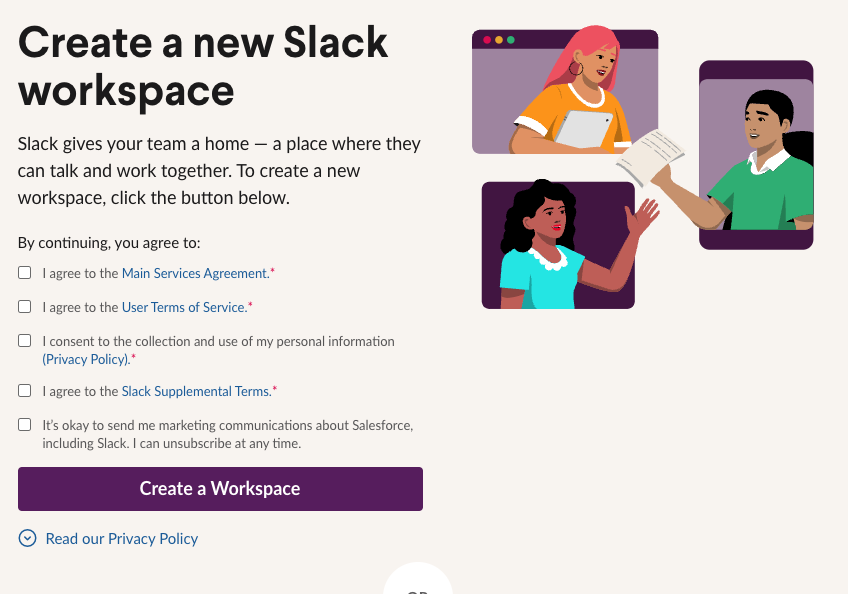
Create a Slack workspace
Click the "Create workspace" button to create a new workspace.
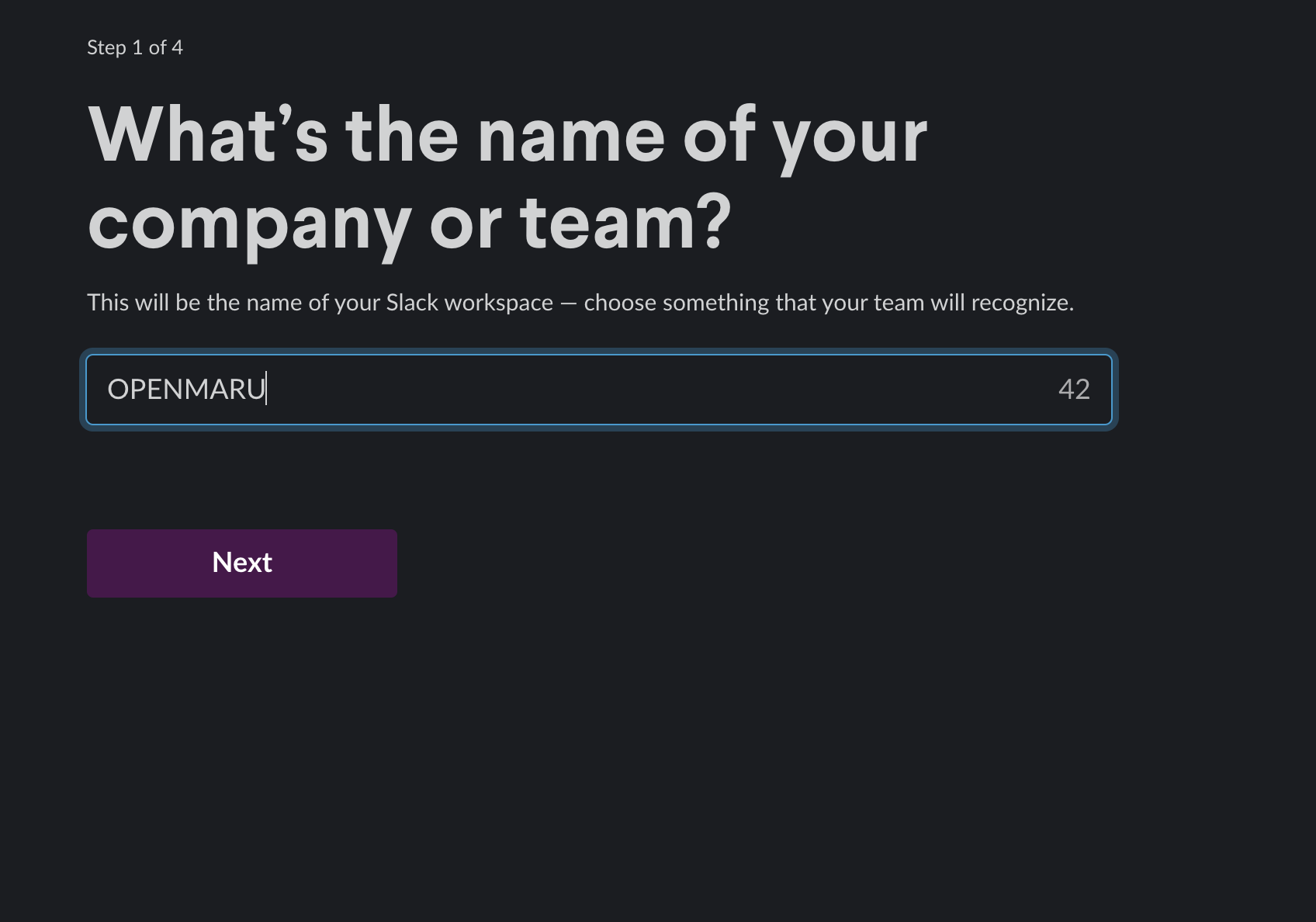
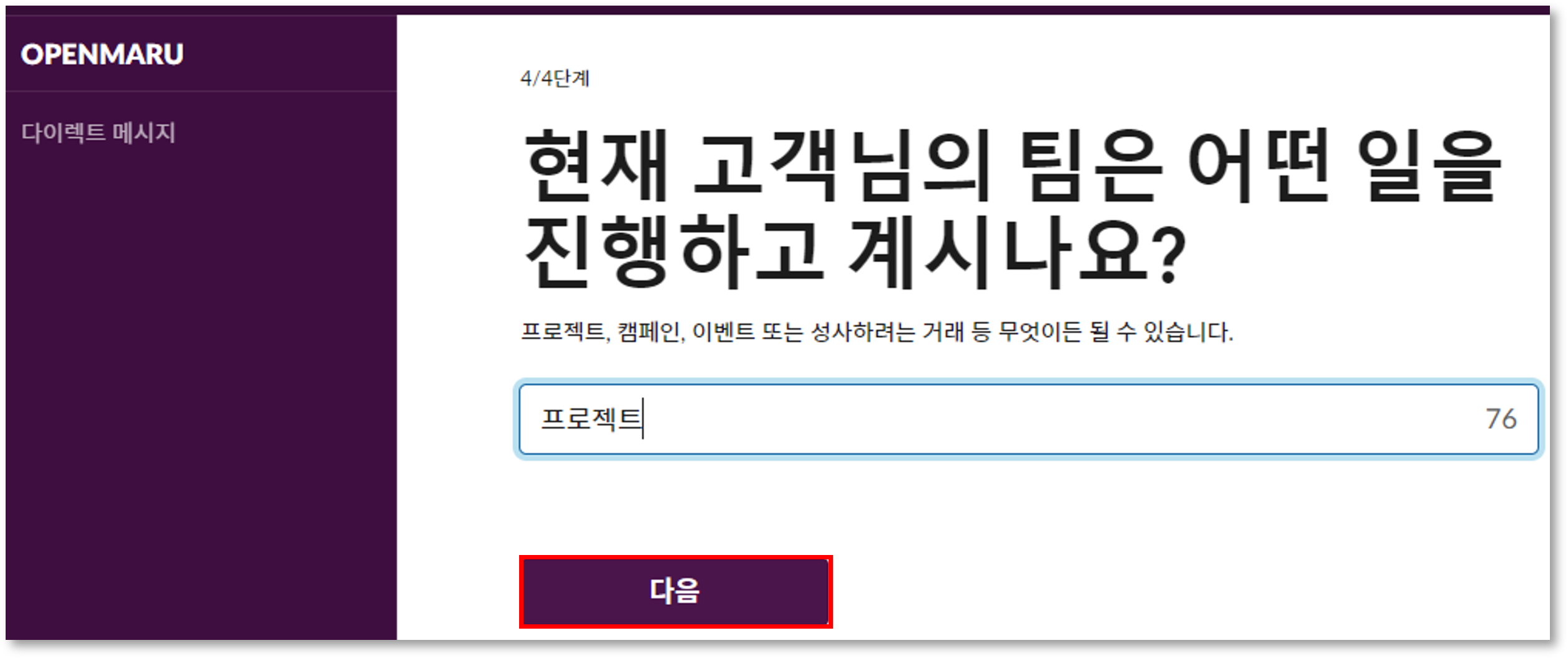
Fill in the information for the four questions.
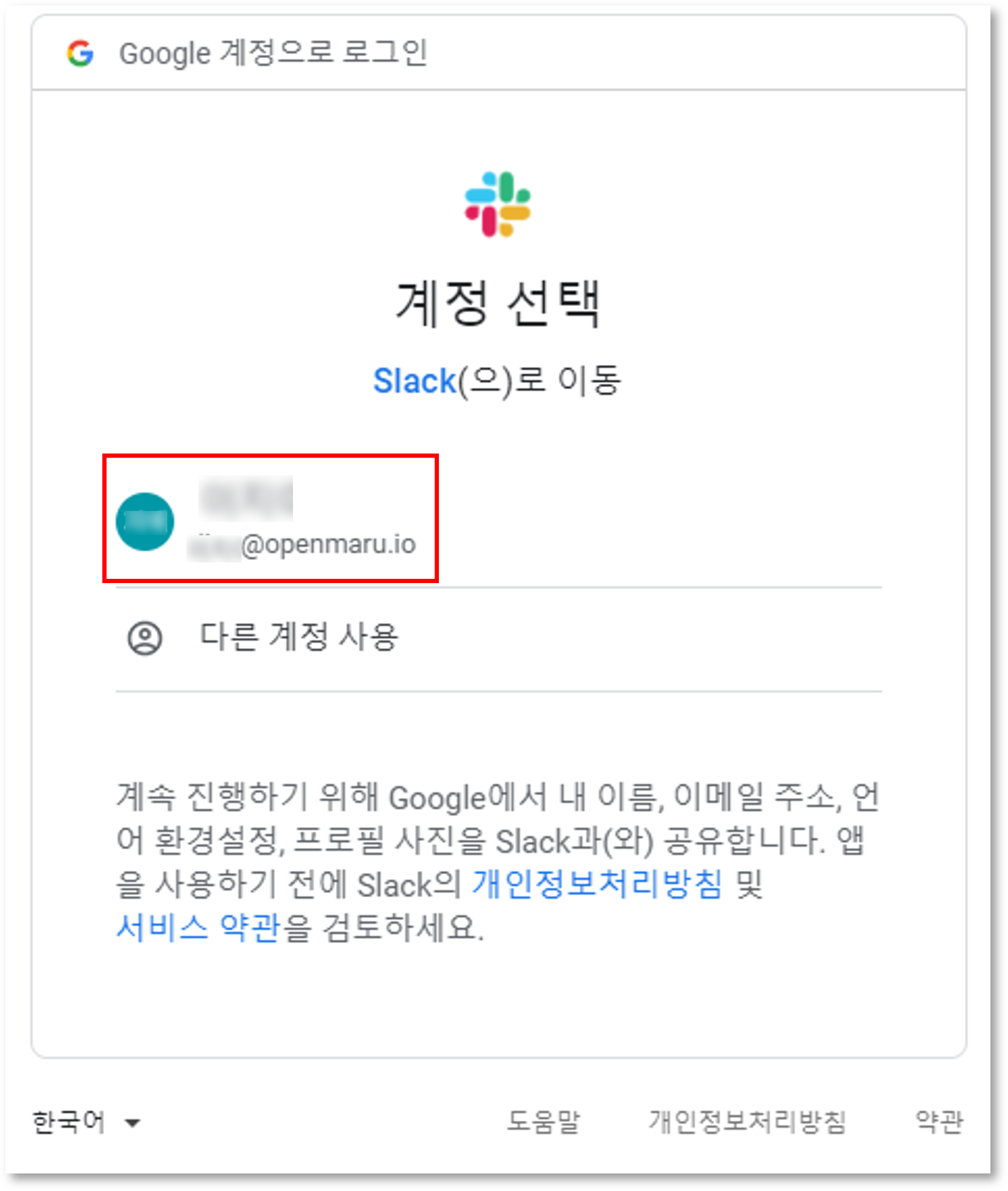
In step 2, you’ll be asked to "Connect with Google" to get suggestions for people to invite to Slack. to get suggestions for people to invite to Slack.
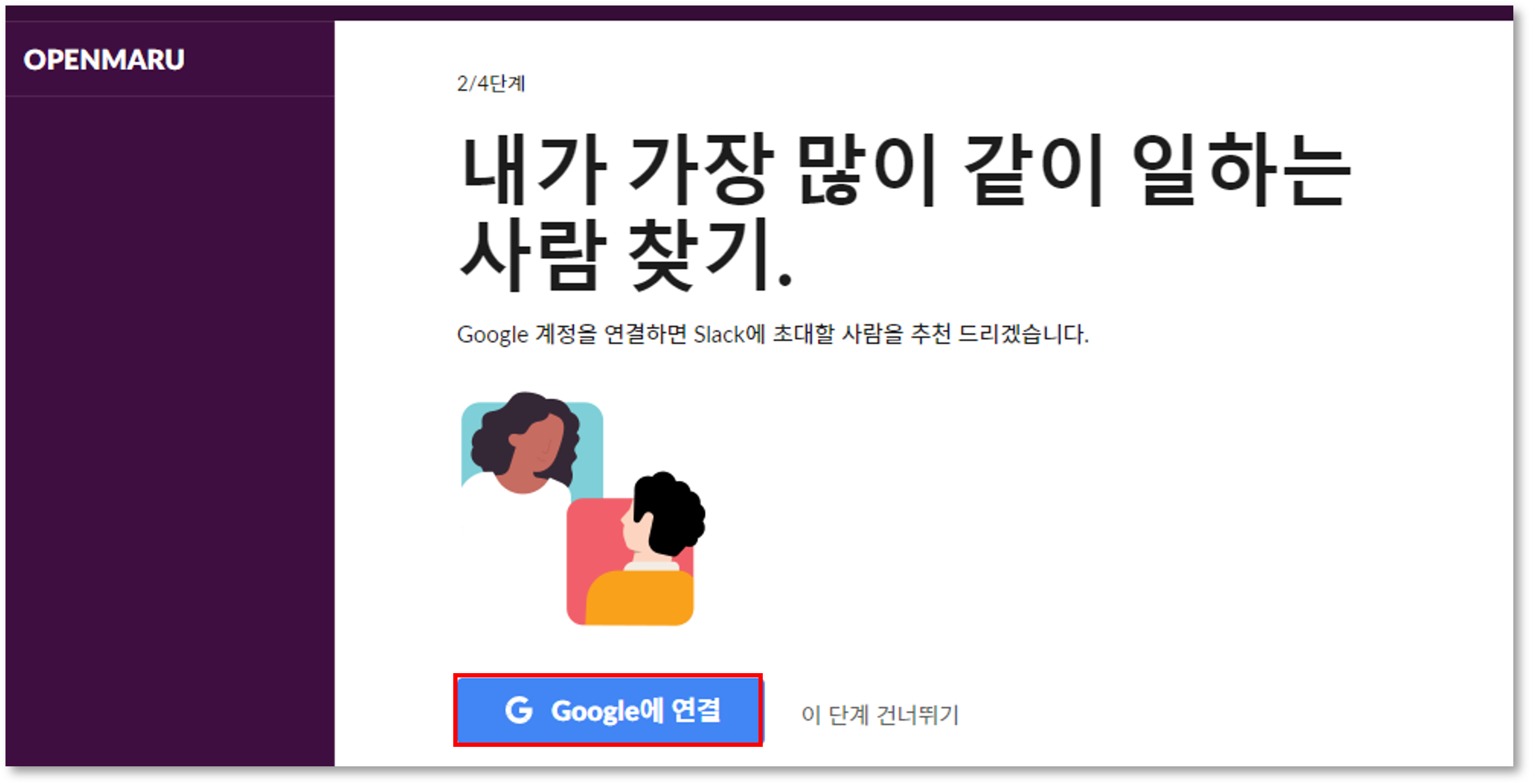
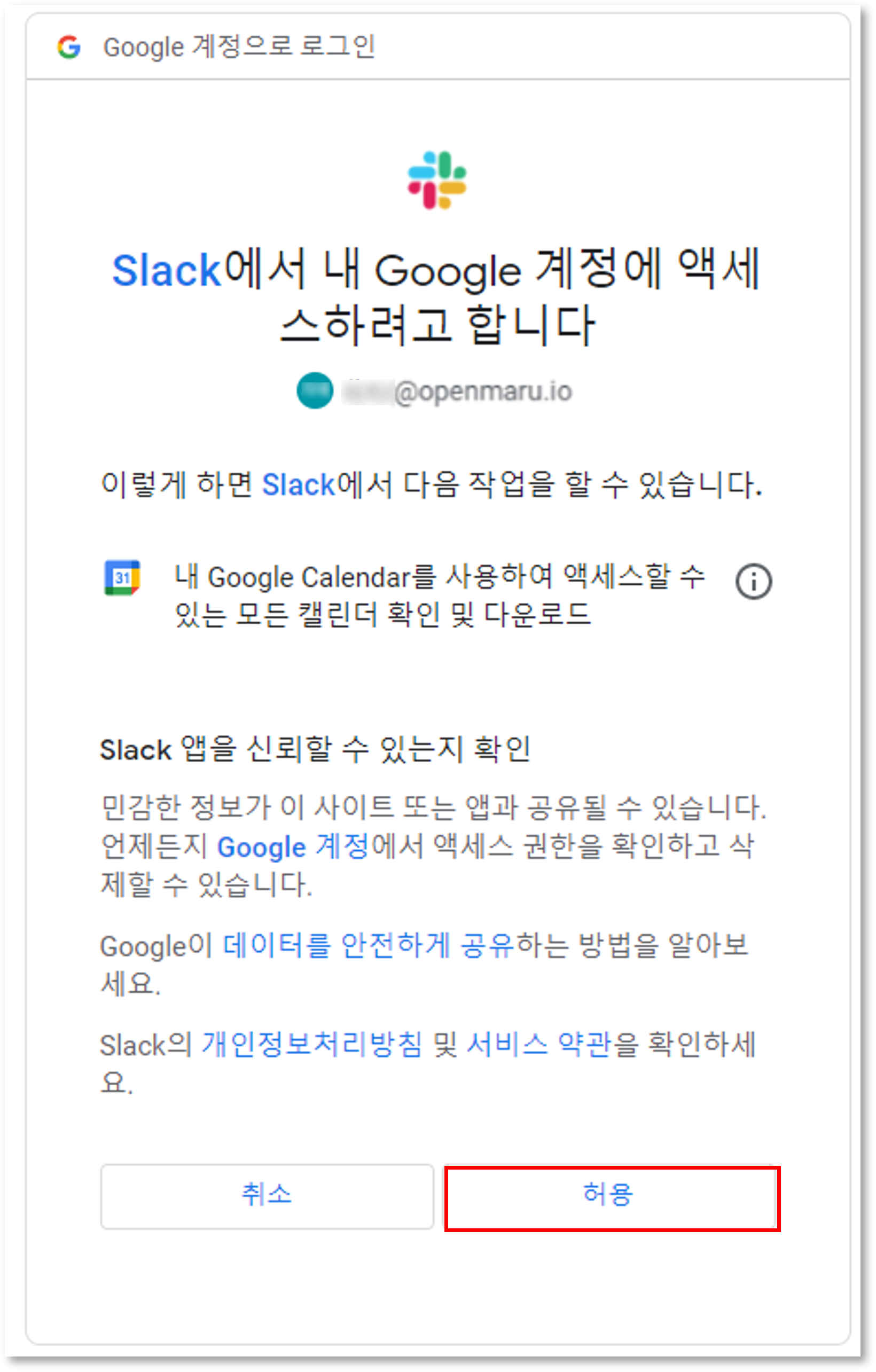
Select the Google account you want to connect and allow it.
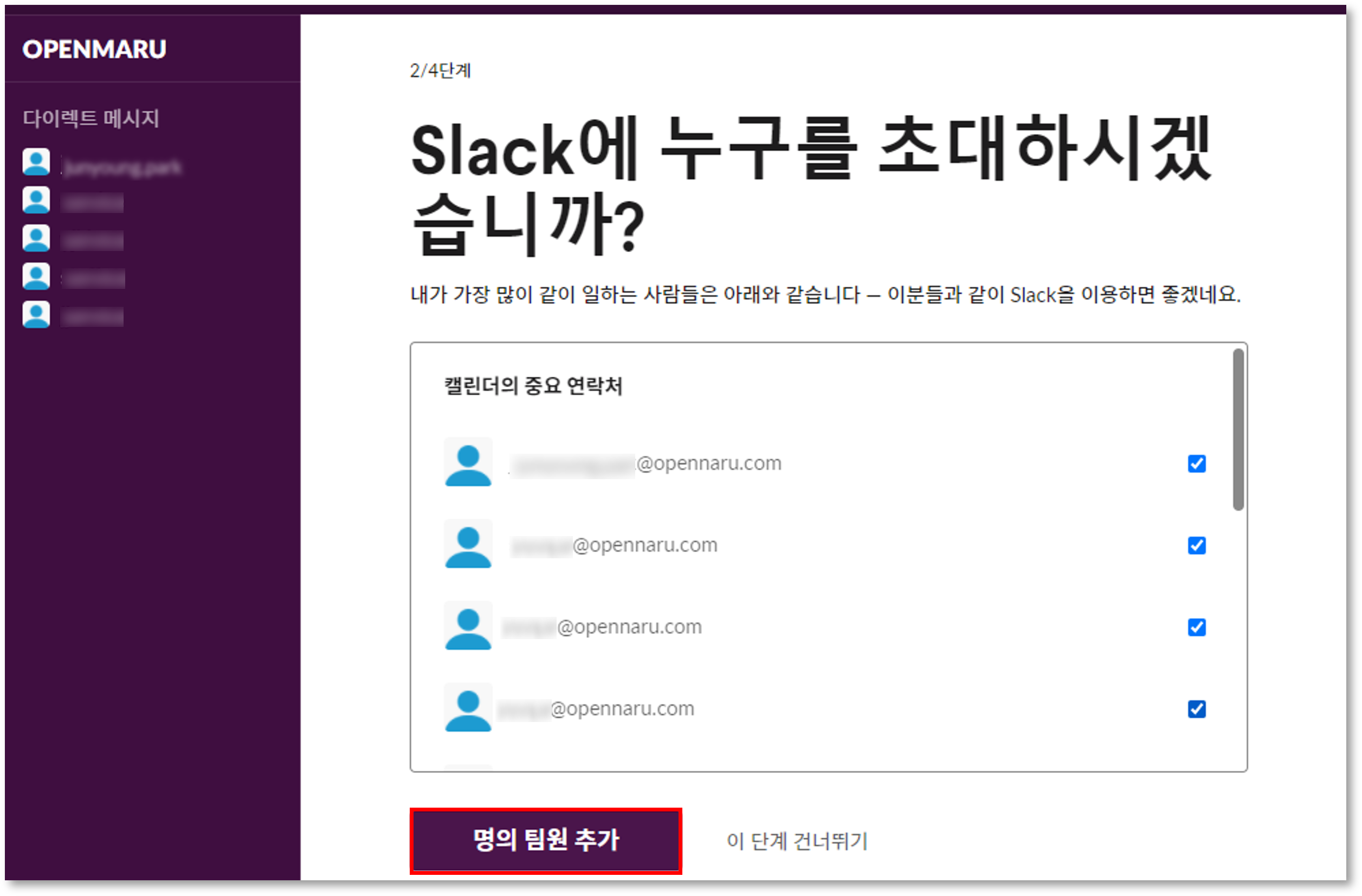
In addition to the suggested team members, you can select and remove other team members.
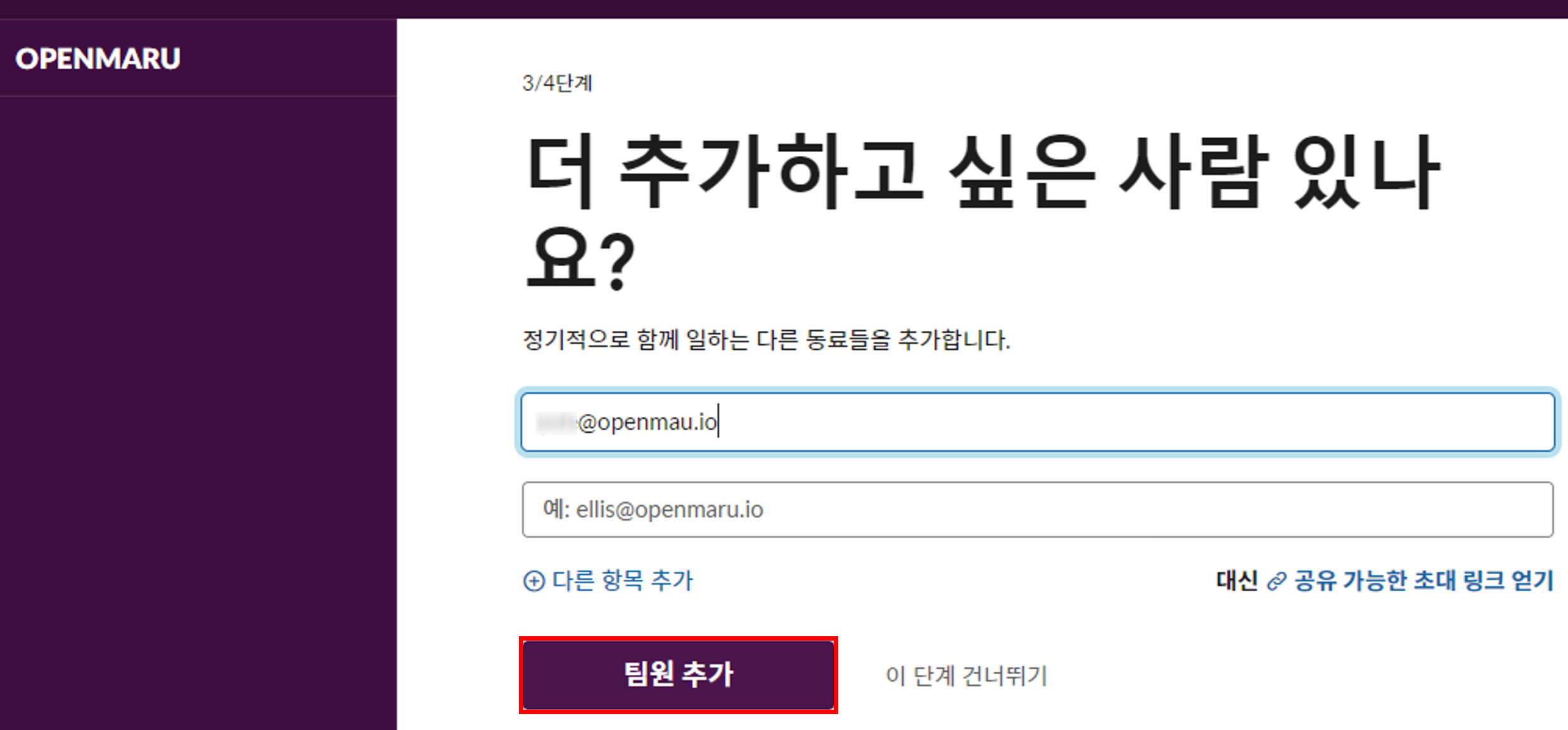
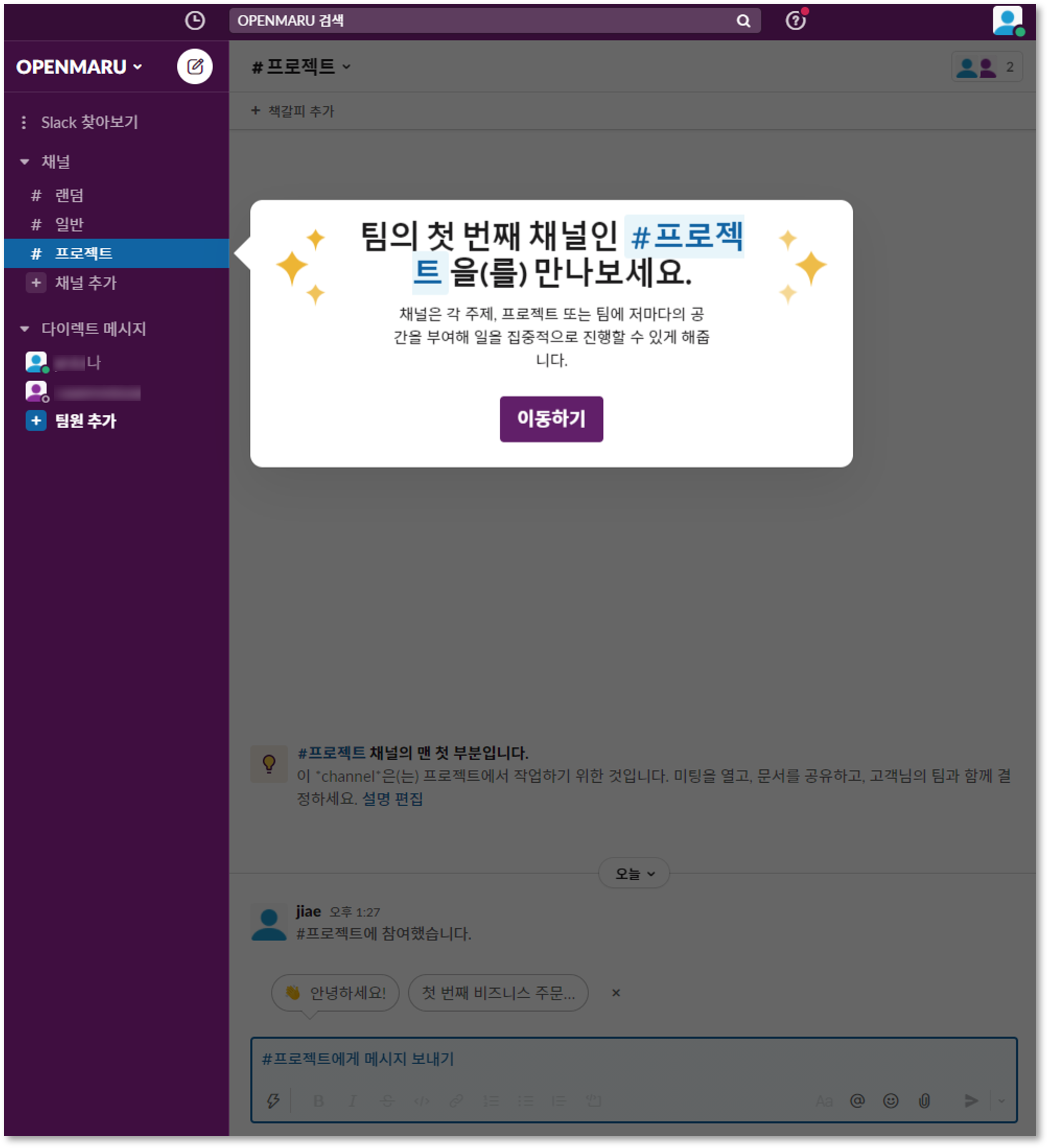
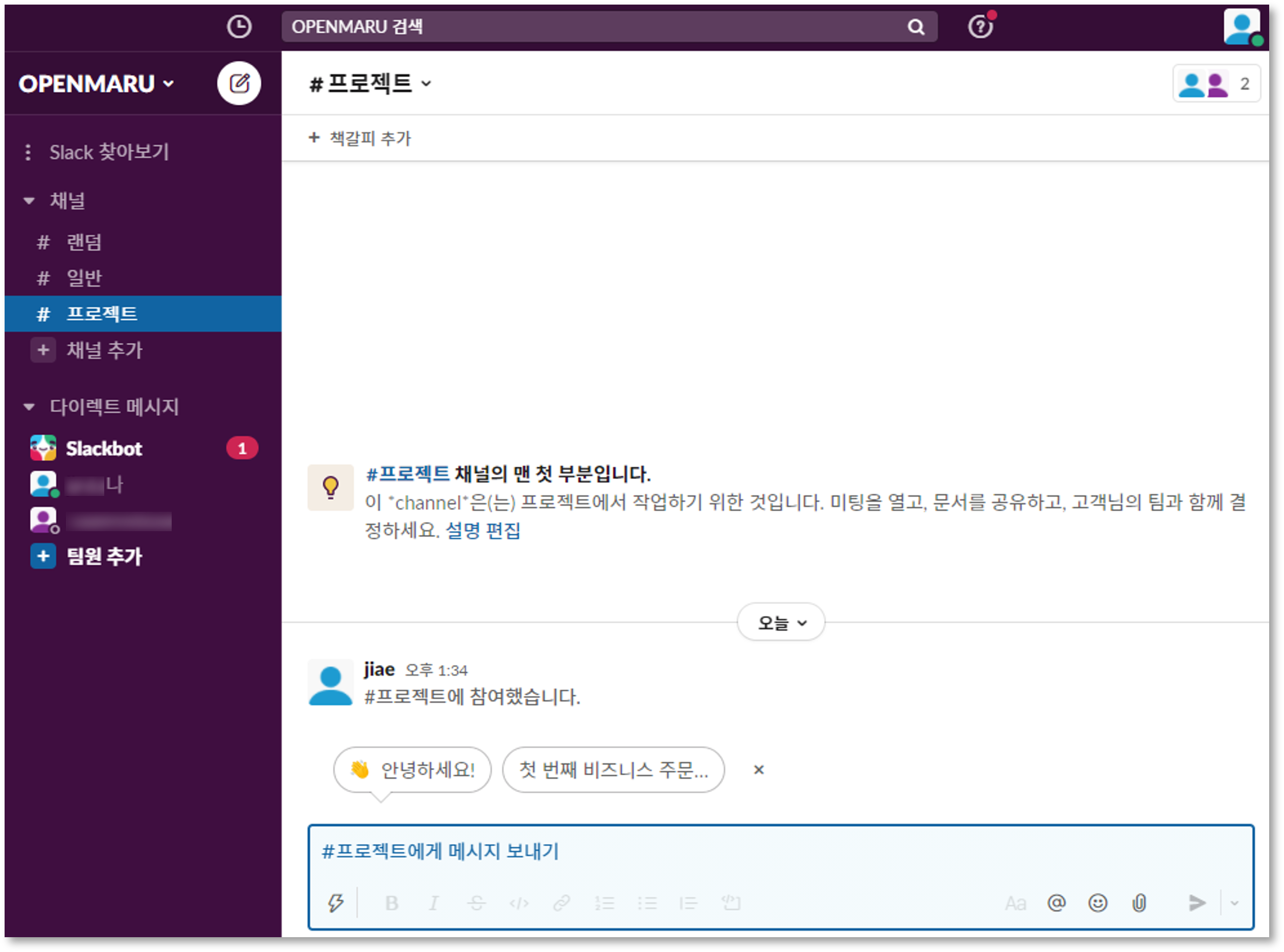
In step 3, you can enter the emails of the users you want to invite to the team. Fill in the information until step 4.
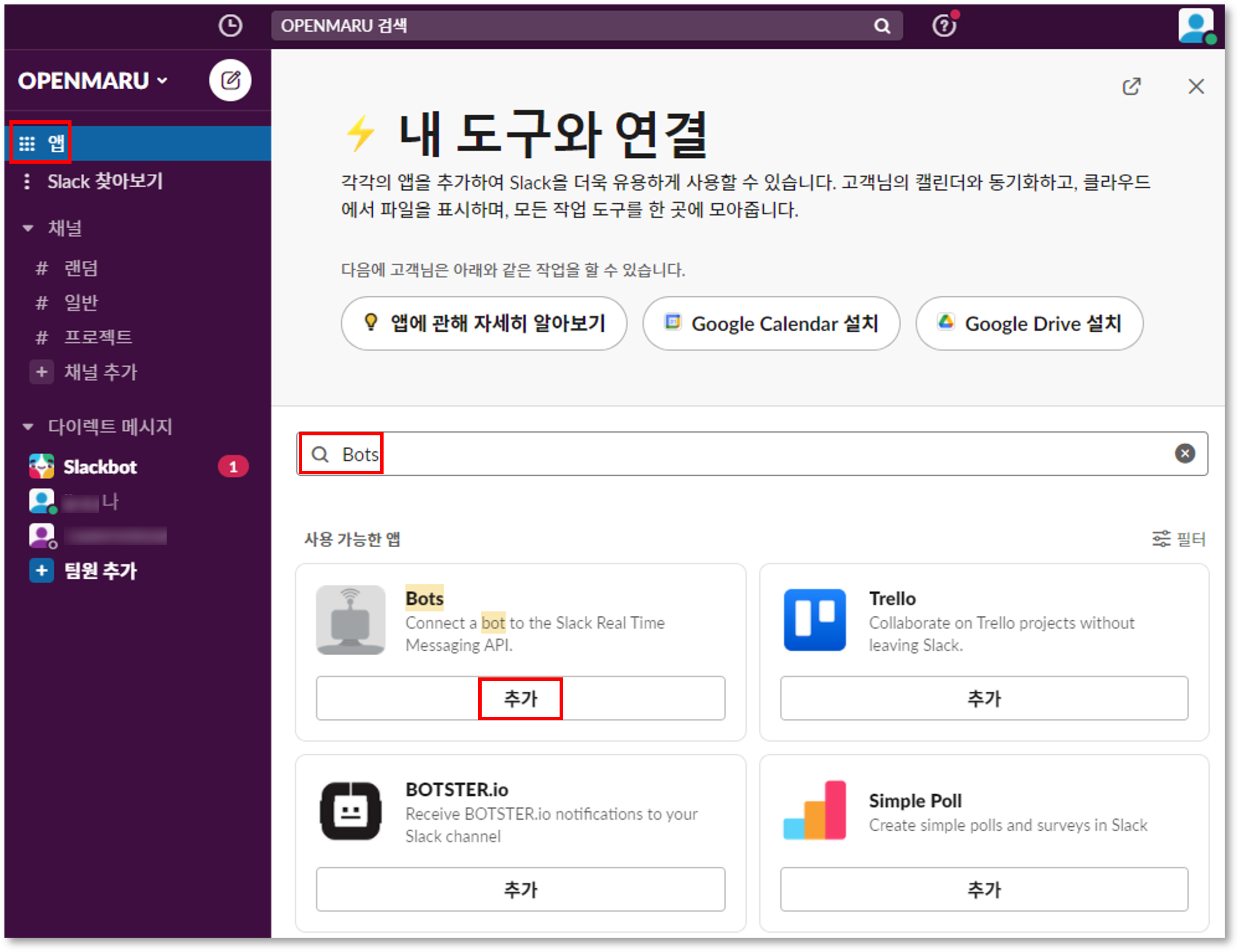
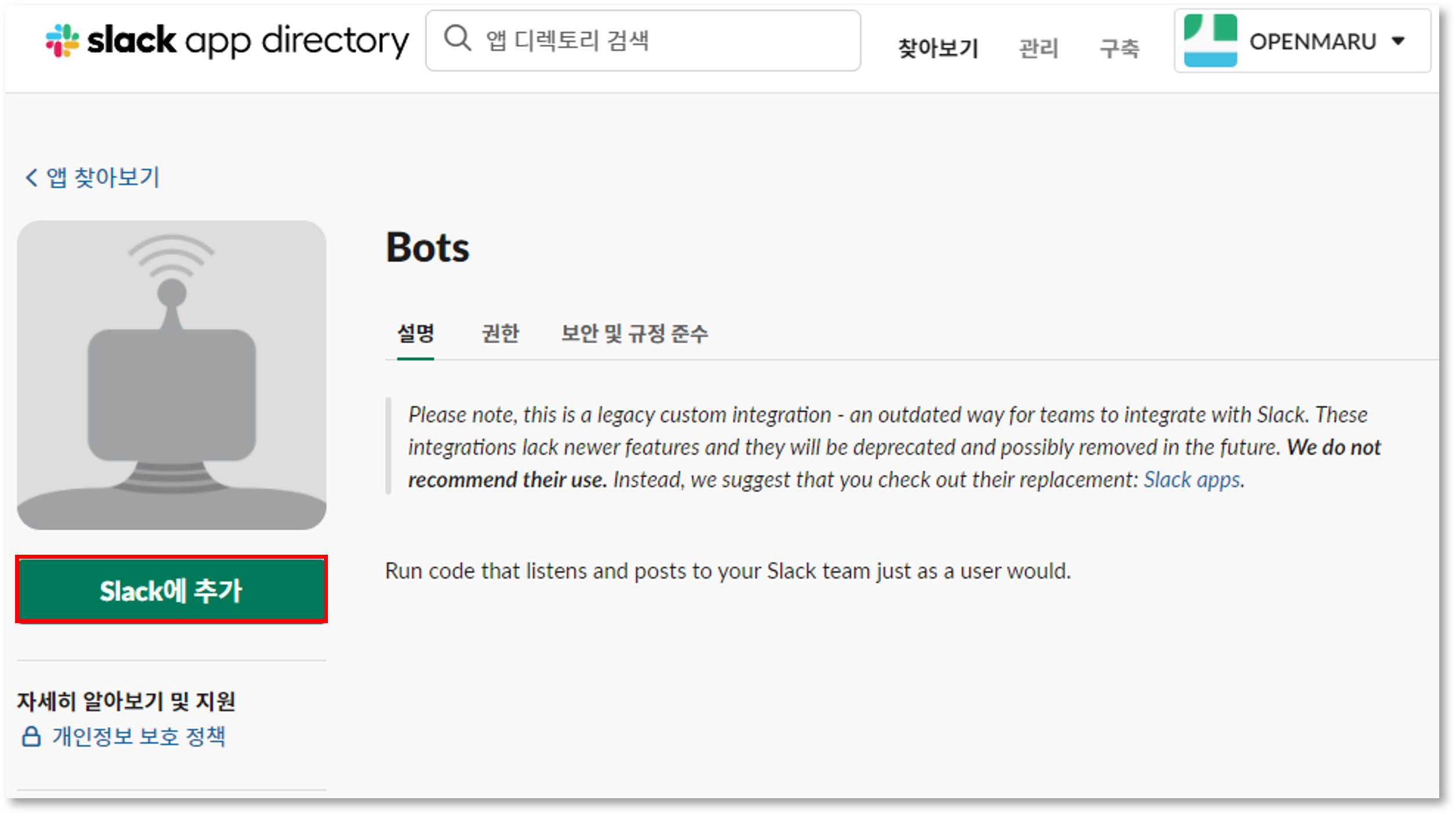
Setting the bot username
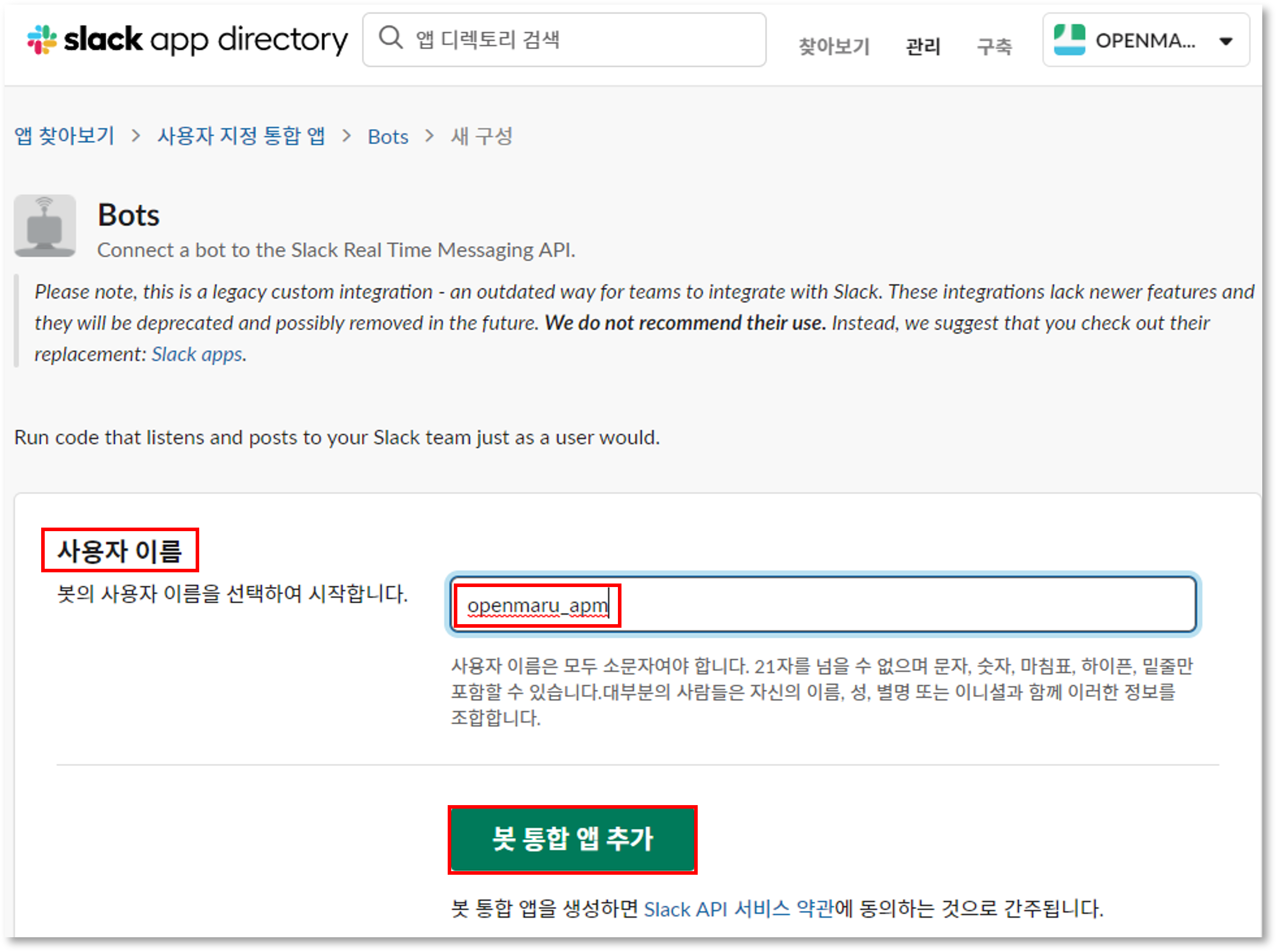
Enter a username for the bot and click the 'Add bot integration app' button.
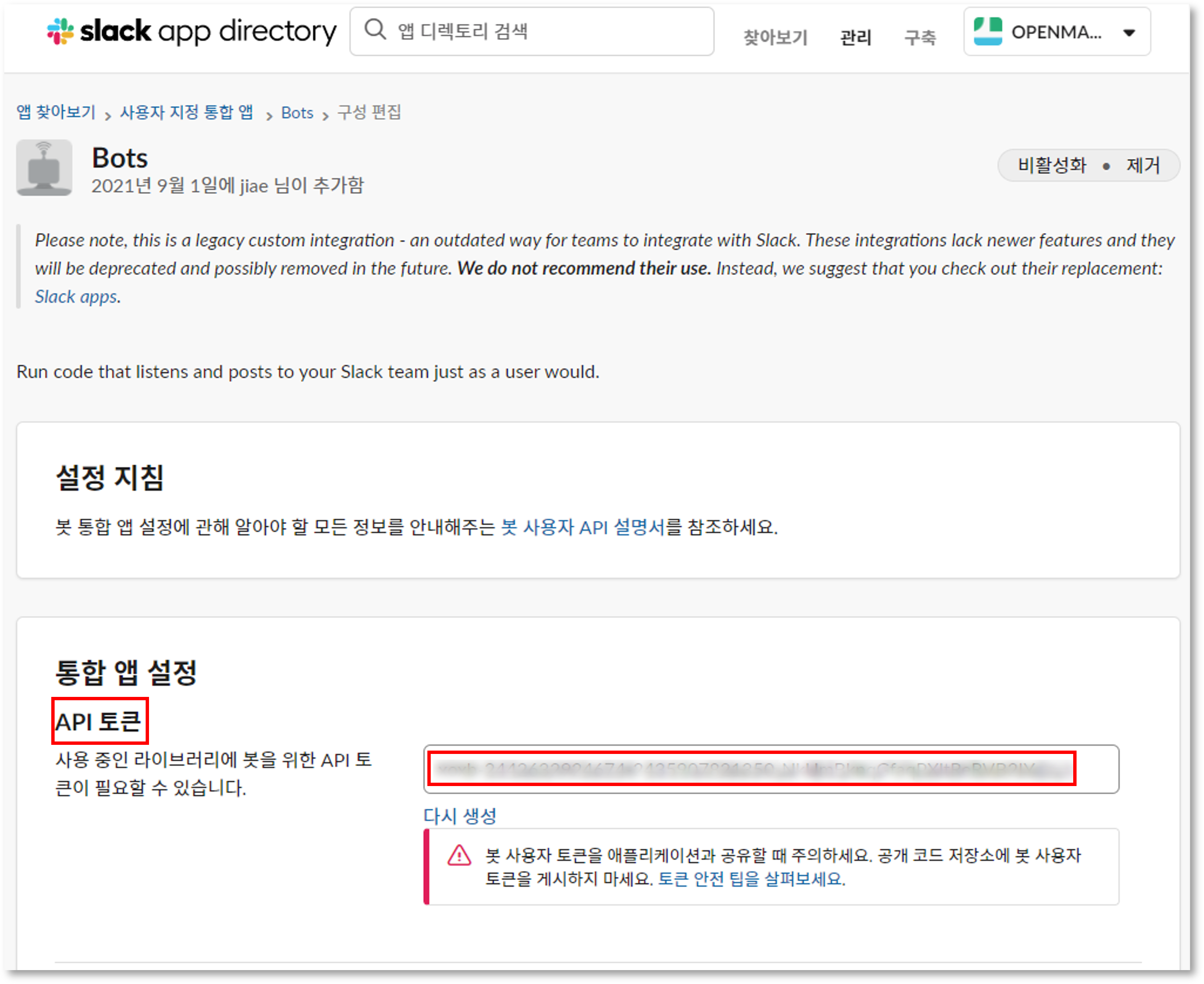
Check Bot’s API Token
The bot’s APIToken is a key that is required to integrate with APM. Keep it in mind.
Save the Bot integration app
After confirming the API Token, click the Save Integration App button to save it.
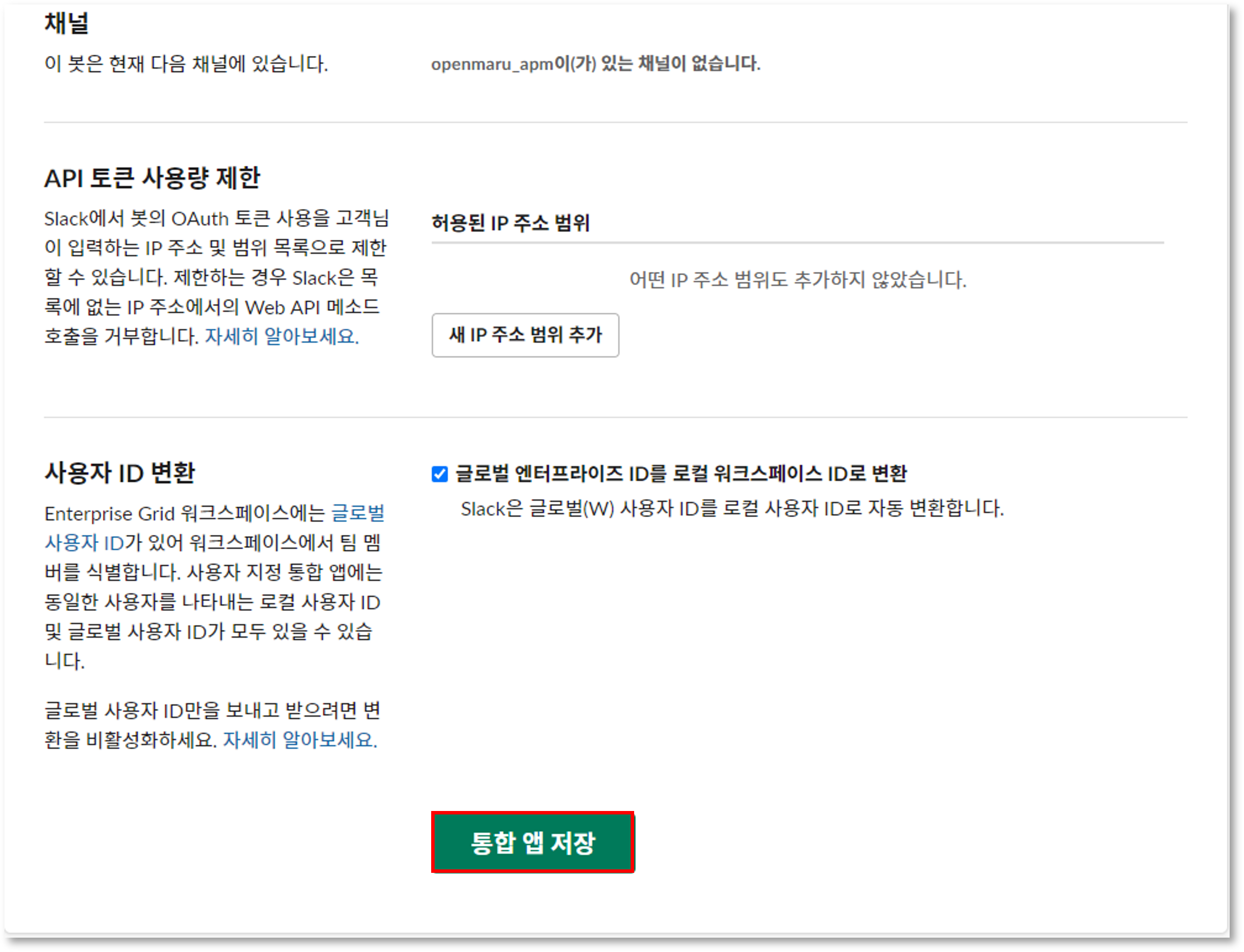
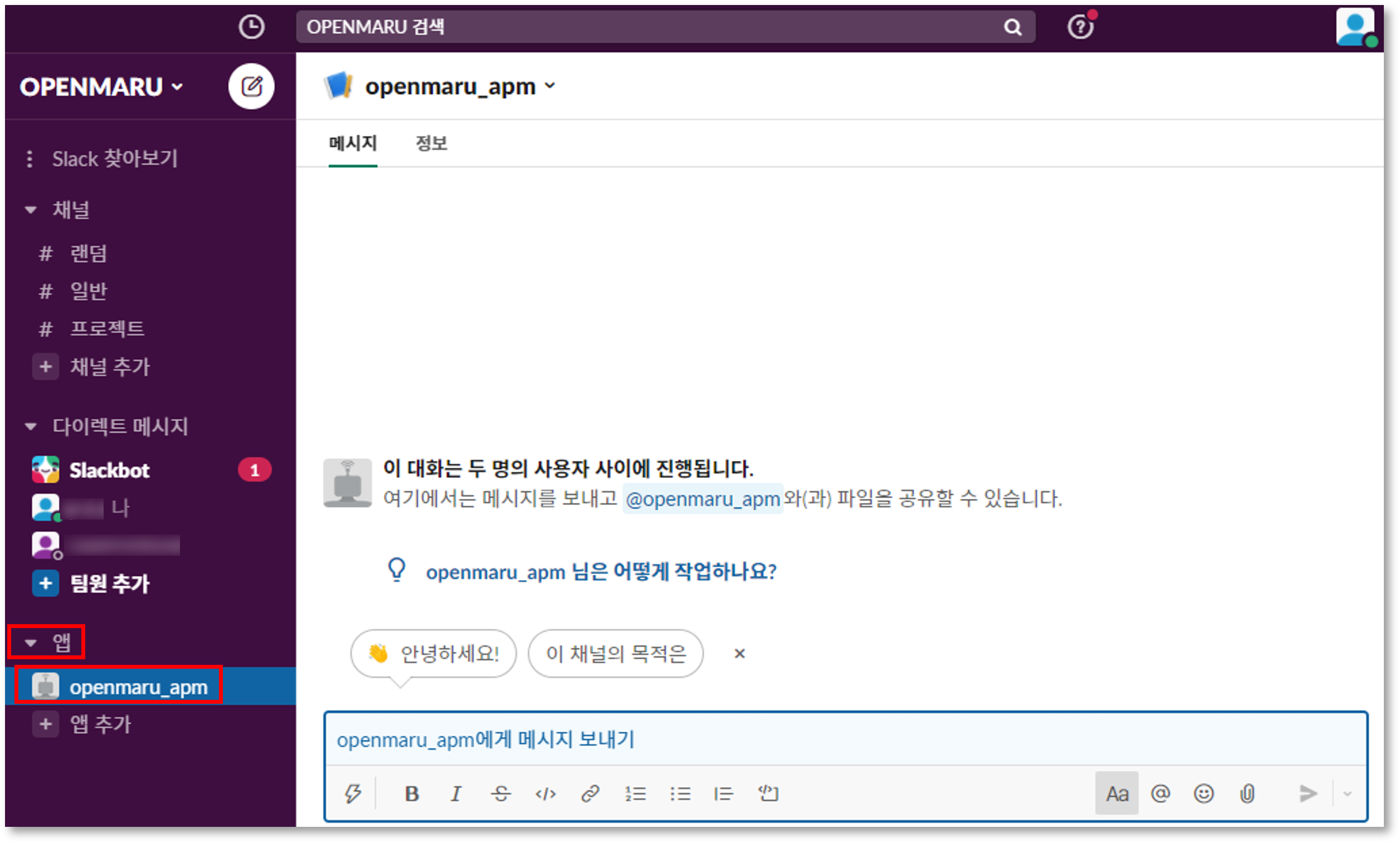
Confirm Bot user
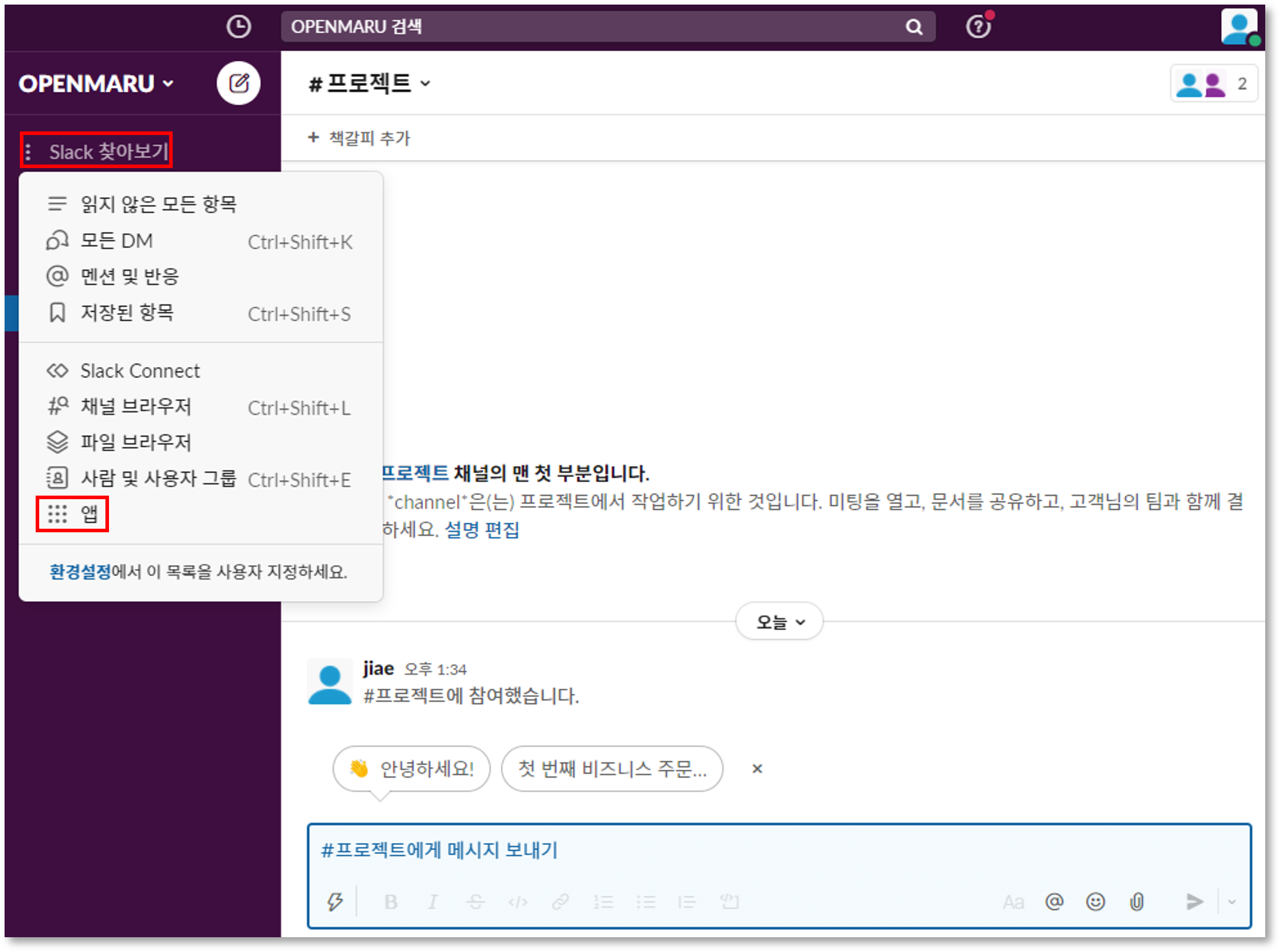
Go to Slack’s screen - Apps - Bot named 'openmaru_apm' and you can see that a bot has been created.
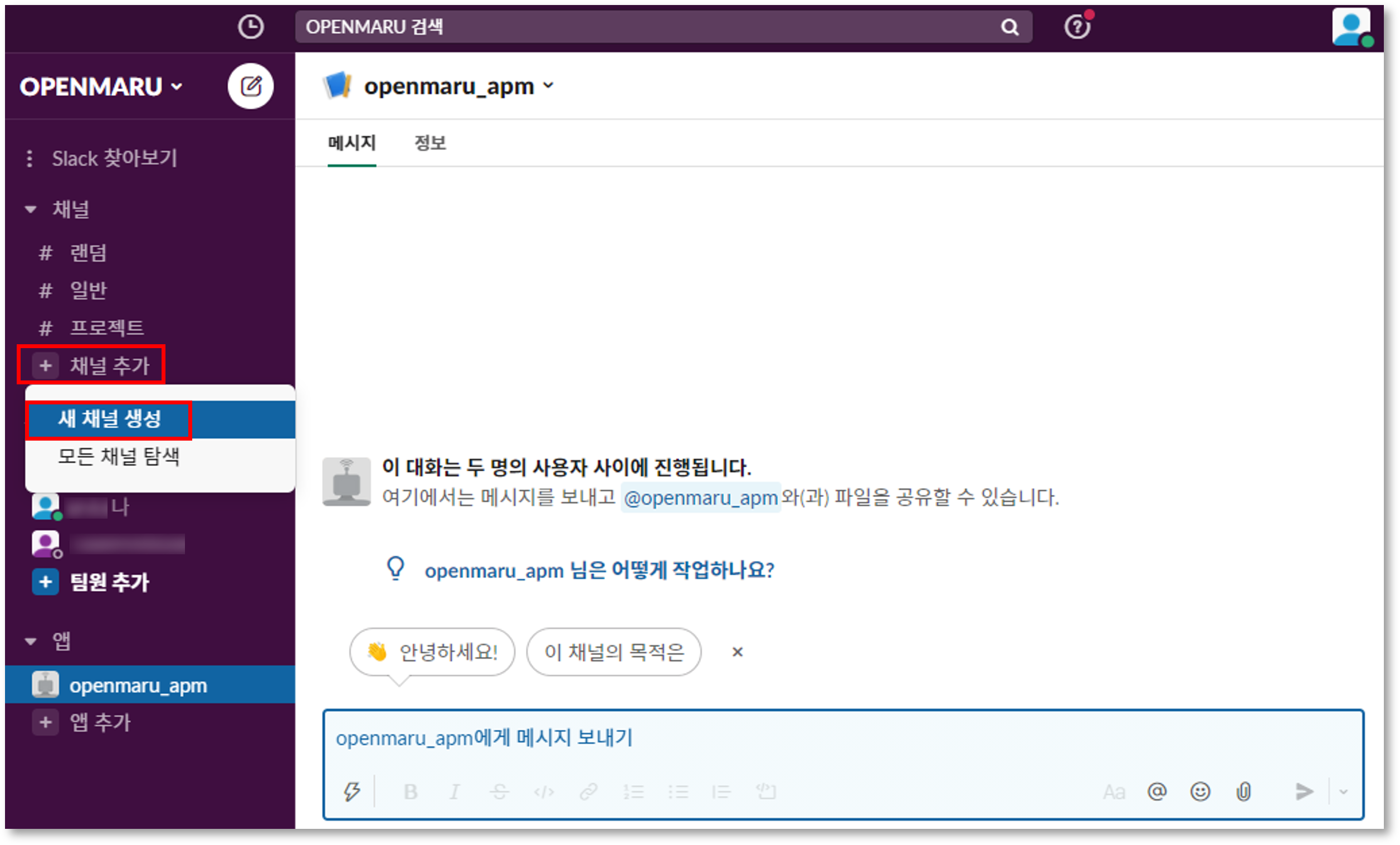
Create a channel to store APM events
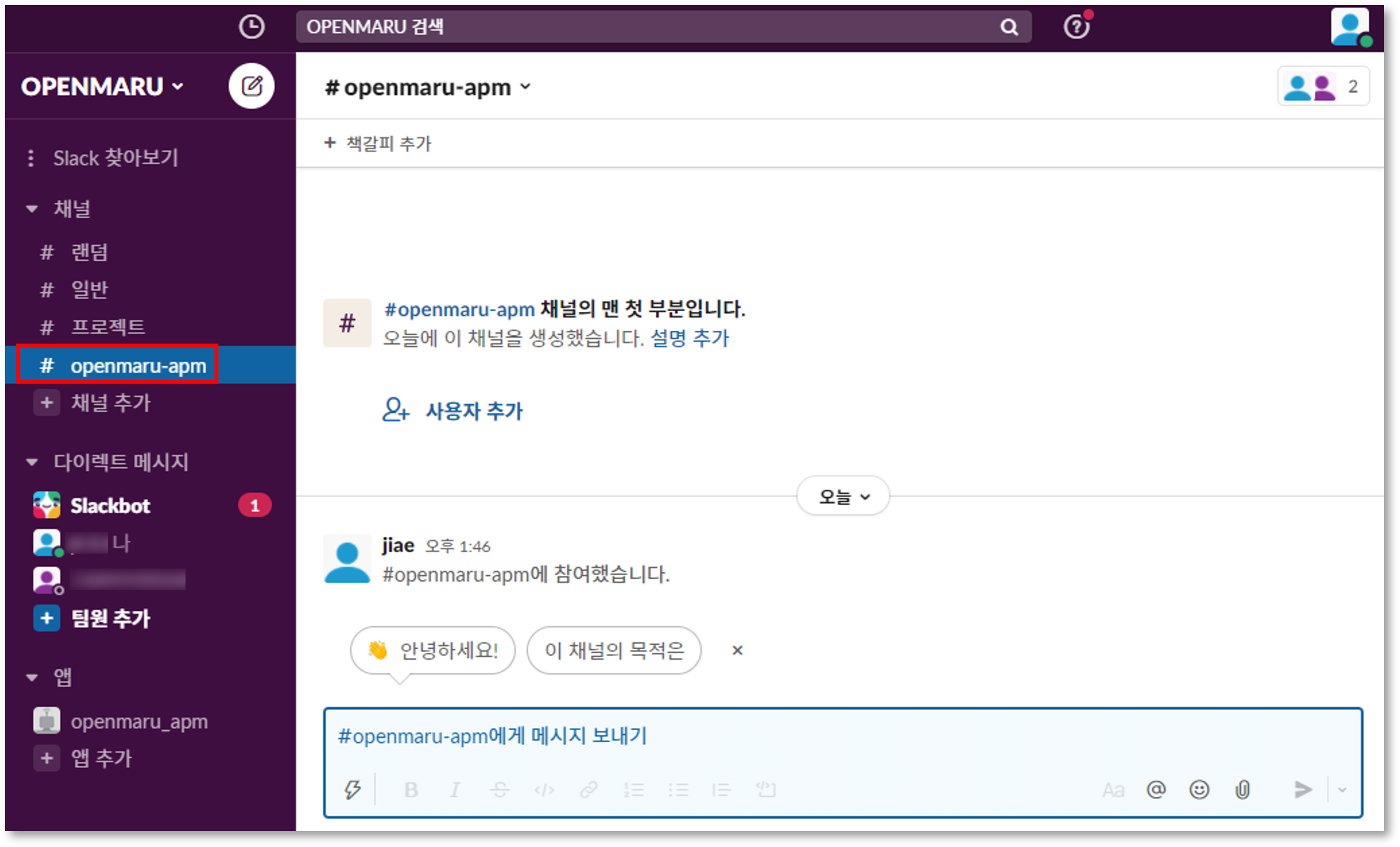
Click the Add channel - Create new channel button.
Name the channel to create it.
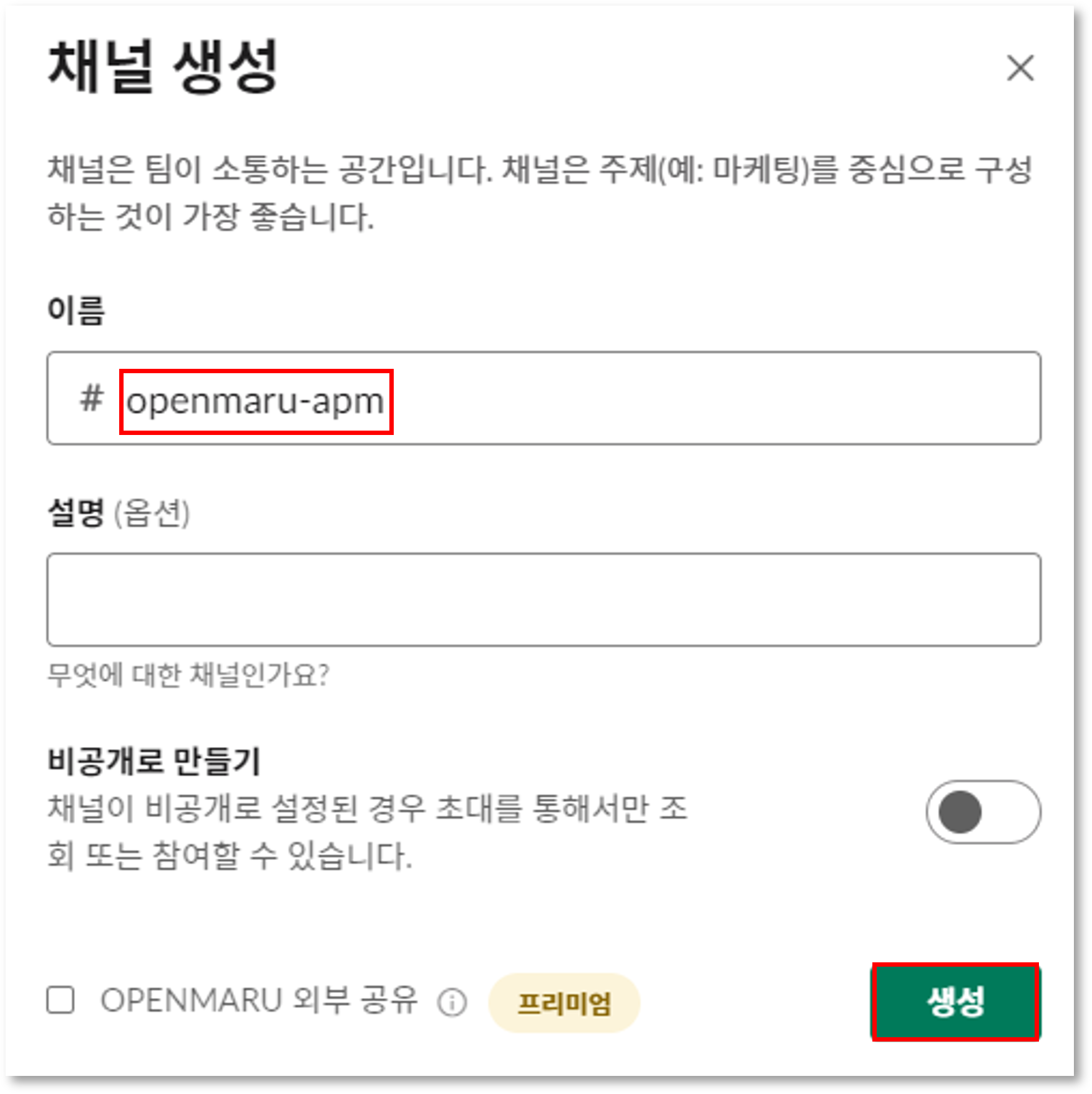
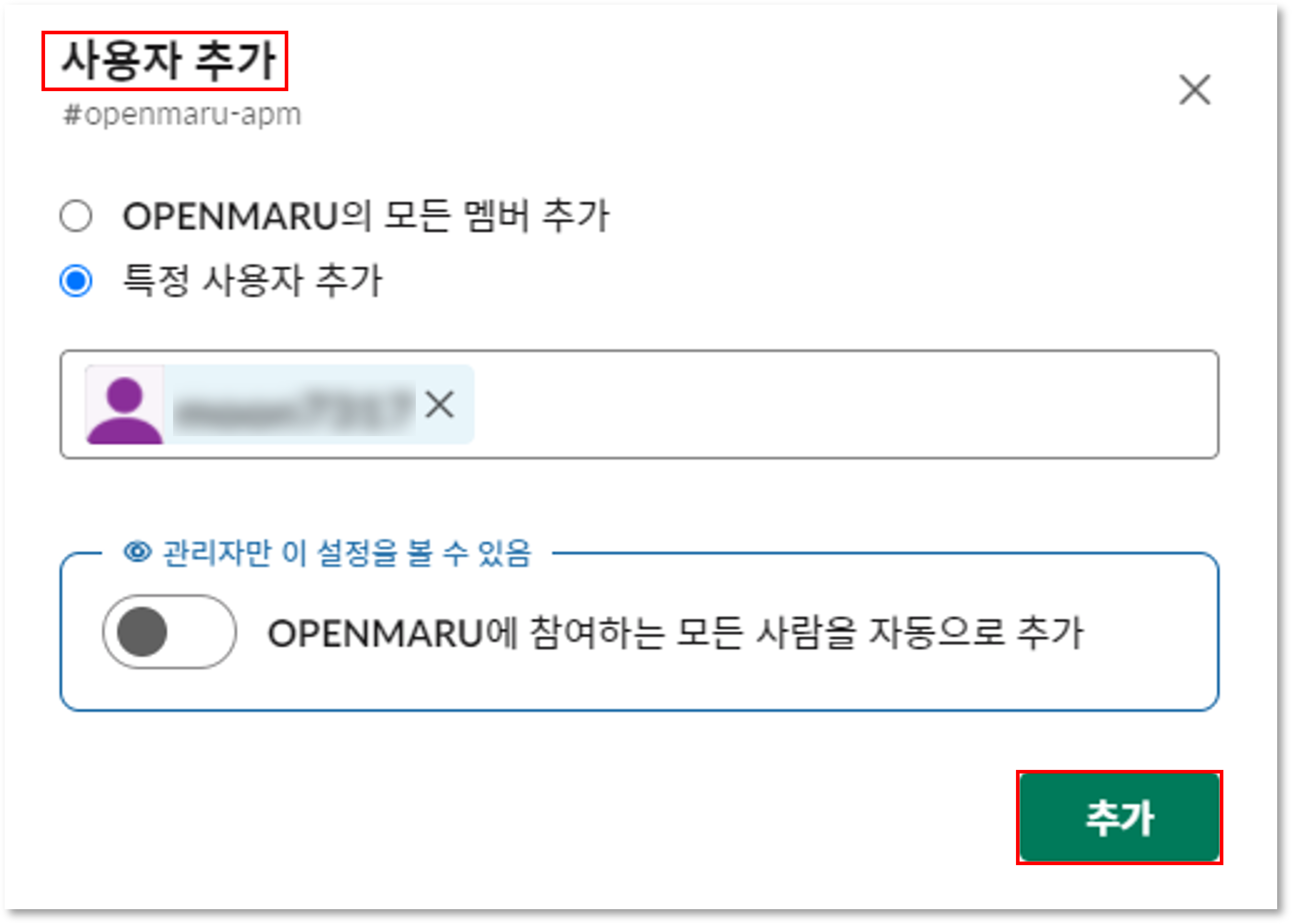
Click "Add User" to add all members of the channel or add a specific user.
Set up APM events
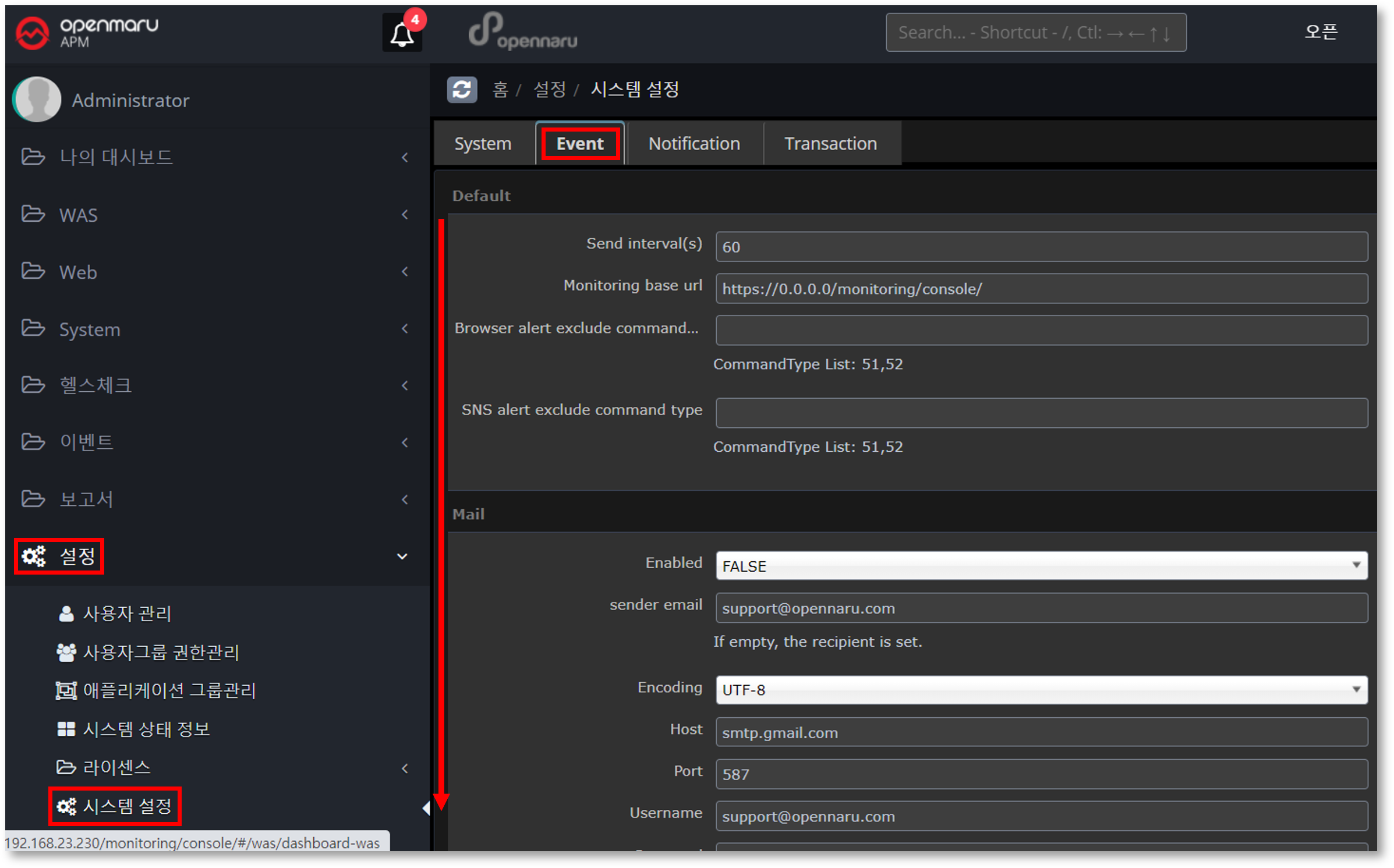
Connect to APM and click the Settings - System Settings - Events menu.
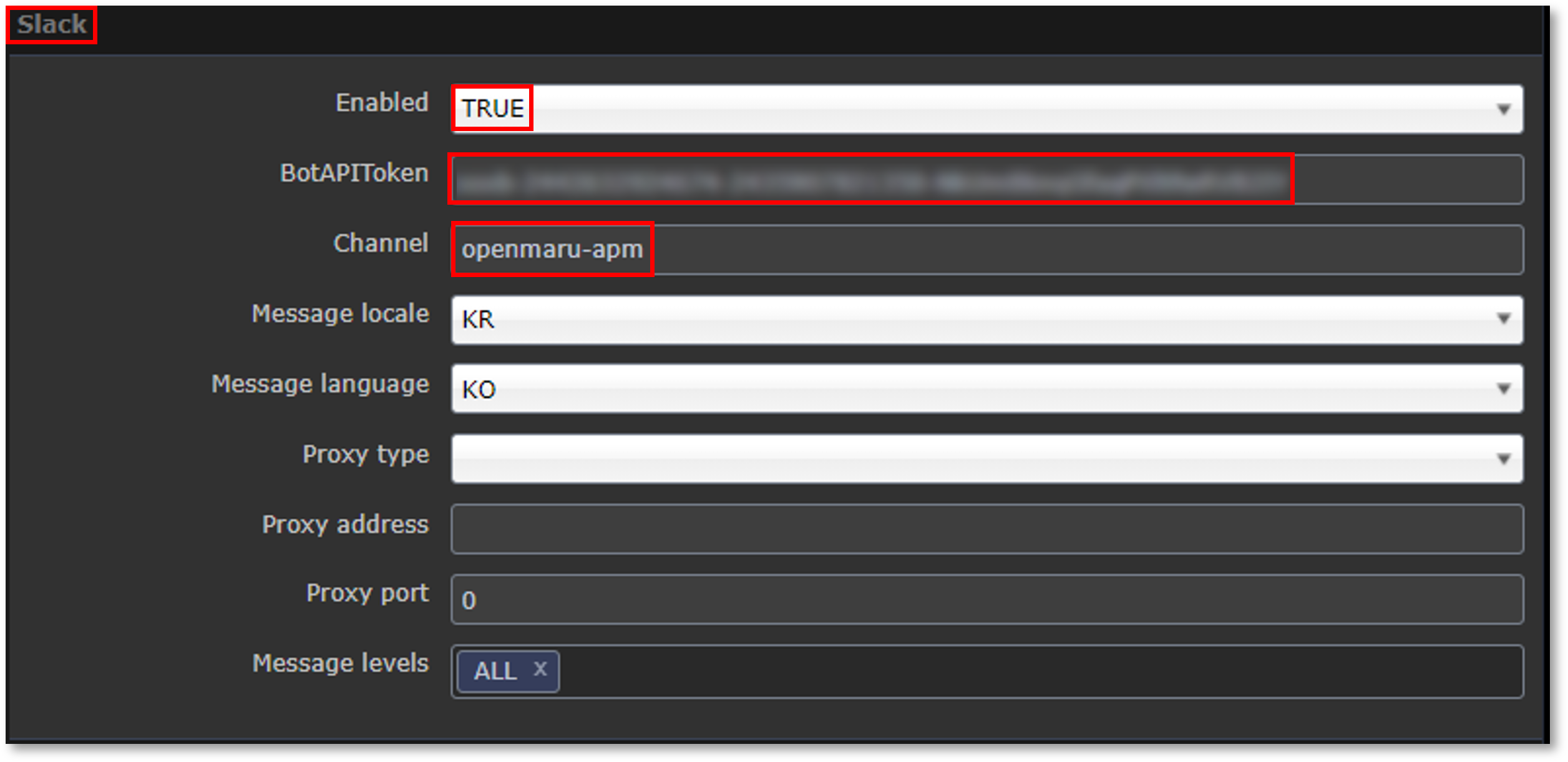
In the Slack section, change the value to the one shown.
| Item | Description |
|---|---|
Enabled |
Sets whether to use the slack integration. Set to "TRUE" if you want to receive event notifications. |
BotAPIToken |
Enter the Bot’s APIToken value. |
Channel |
Enter the channel name to receive events from the APM created earlier. |
Message locale / Message language |
If set to kr, ko, it sends Korean messages, and if set to us, en, it sends English messages. |
Confirm sending events to the channel in Slack
After restarting the APM server, you can now see APM events sent by the @openmaru_apm bot to the 'openmaru-apm' channel in Slack.
You can add users to the openmaru-apm channel that you want to receive events from.
You’ll be able to receive notifications of Slack events through a variety of clients, including iOS and Android apps, browsers, and Windows applications.
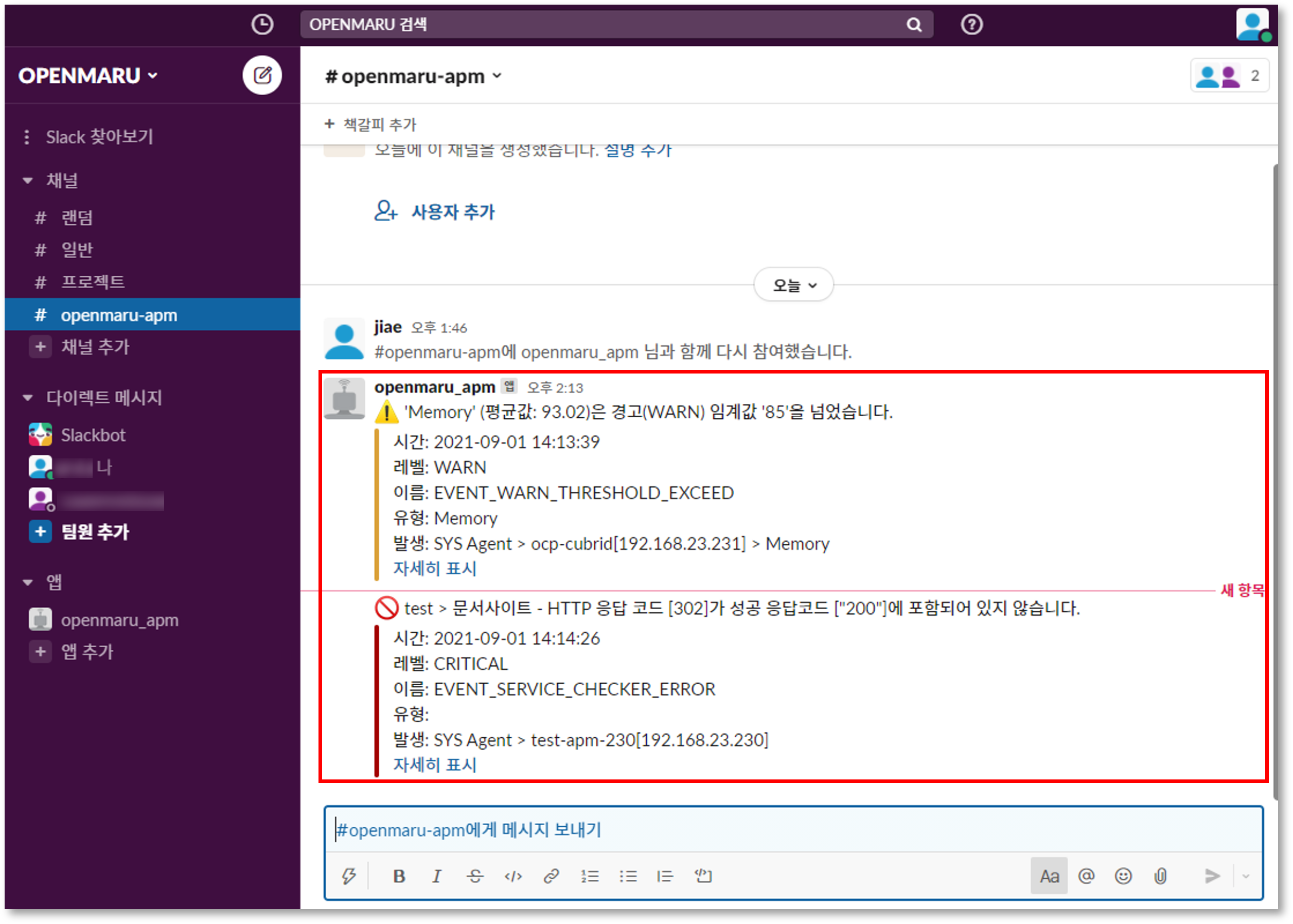
By default, you can access Slack through a browser, desktop applications on MacOS, Windows, and Linux, or mobile apps on iOS, Android, and Windows Phone.