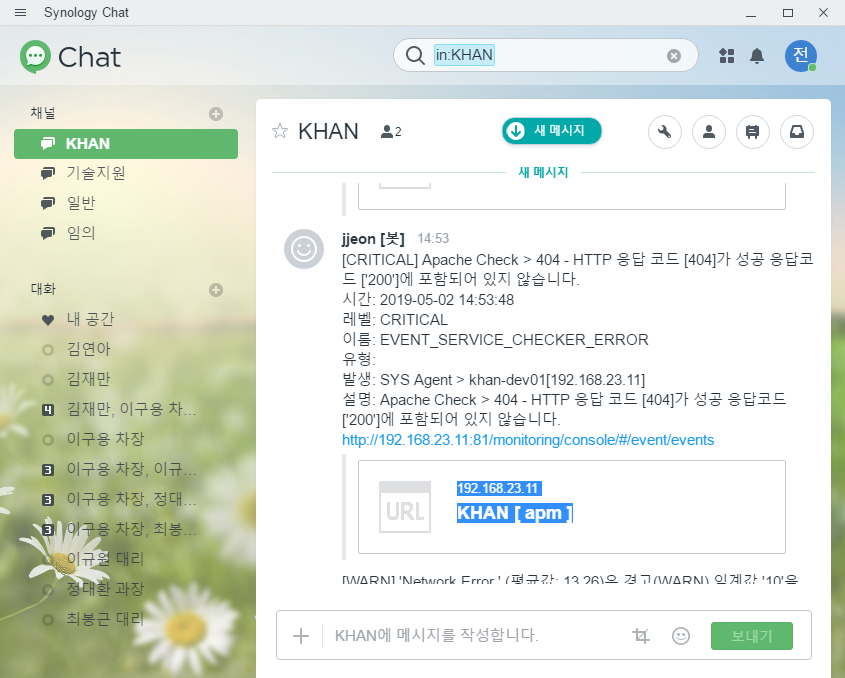
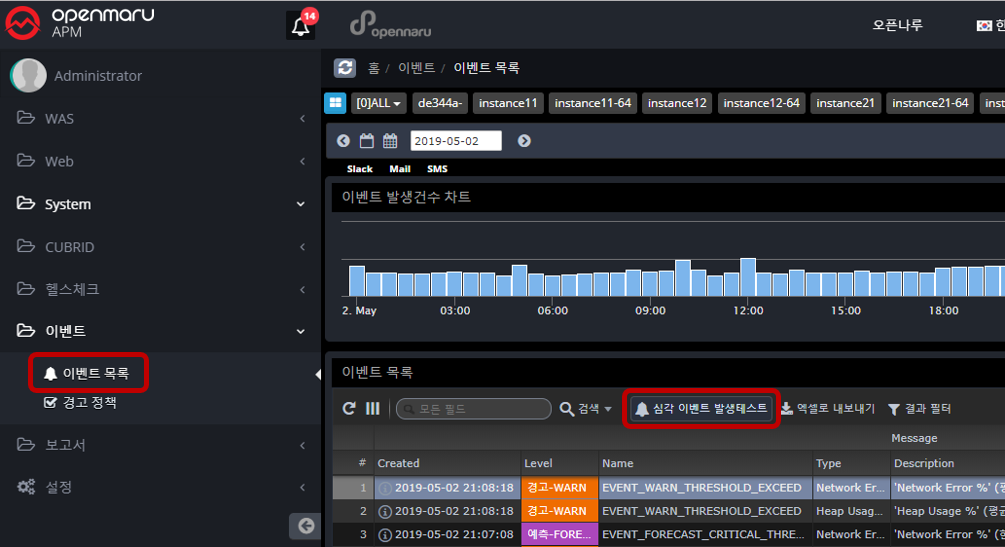
5.3 Synology Chat event integration
Synology Chat integration settings
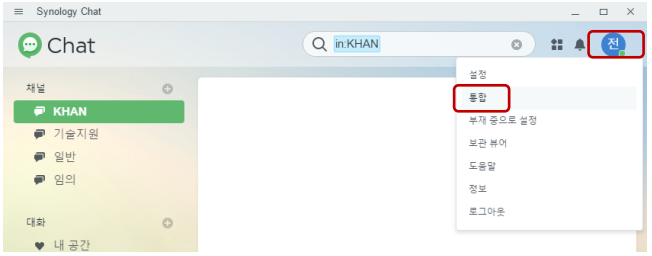
Click on the top right icon of Synology Chat and select the Integrations menu.
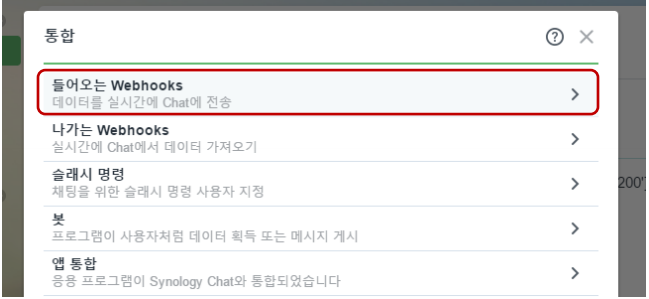
Select Incoming Webhooks.
Click the '+ Create' button.

Specify the channel to which the event will be delivered and the username to which the event will be logged.
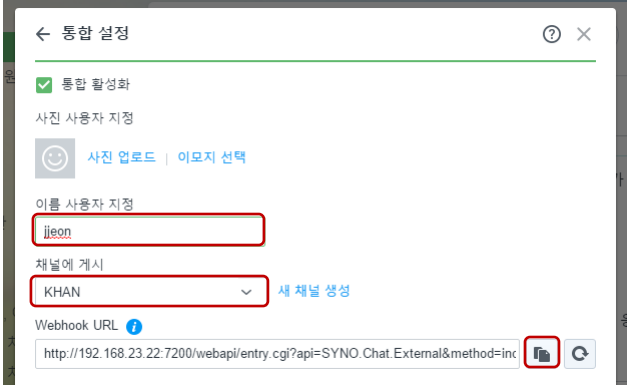
Copy the webhook URL and copy the token.
http://synology.myhome.com:5000/webapi/entry.cgi?api=SYNO.Chat.External&method=incoming&version=2&token=OWqRRyCVUaNazCRNsFgTJJUgQDxoRdxS3TIggwkWATguvY1pWrqXLdVD0qCSe
Set up the APM Synology Chat event
To set up APM events
APM Settings → System Settings → Events tab - Synology+. Enabled to True
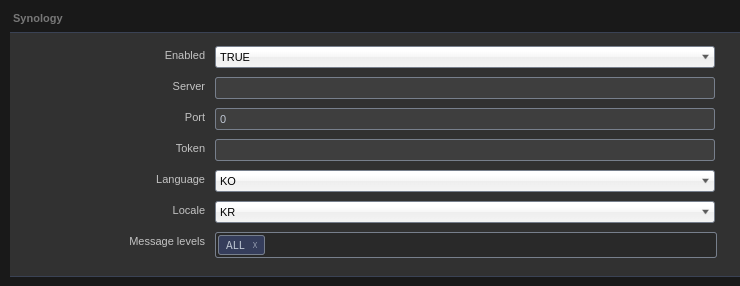
The settings and contents of the settings item are as follows.
| Category | Default | Description |
|---|---|---|
synology.chat.enabled |
false |
true, false Sets whether Synology Chat Event sending is enabled. |
synology.chat.token |
Sets the token set by incoming webhooks. |
|
synology.chat.message.language |
en |
Select the message language to send to Synology Chat. en, ko available |
synology.chat.message.locale |
en |
Select the message locale to send to Synology Chat. Available for us, kr |
synology.chat.server |
Specifies the IP of the Synology Chat server. Must be reachable from the KHAN apm server. |
|
synology.chat.port |
5000 |
Specifies the port number of the Synology Chat server. |
synology.chat.levels |
ALL |
Select the type of events to send to Synology Chat. ALL : All events Specify the events to send among INFO, WARN, FORECAST, and CRITICAL events, separated by commas. |
If you change the event.properties file, a restart of the KHAN apm server is required.